
About JAC website multilingualization
The JAC website uses AI automatic translation (machine translation). Because it is machine translation, the translation may not always be accurate.
About the automatic translation (machine translation) function
- The website is automatically translated (machine translated) according to the language settings of the device you are using to view the website.
- To change the language, open the language selection panel from the Language button in the header and select the language.
- Some proper nouns may not be translated correctly.
- Some pages are not automatically translated. PDFs are not translated.
- Links to external sites will not be translated.
Note
- Please enable JavaScript when using this function.
- This function may not be available in some browsers or viewing environments.



We provide multilingual content through machine translation. Translation accuracy is not 100%. About the multilingualization of the JAC website
If you choose "Plain Japanese", it will be a simple sentence and a phonetic.
If you select "Attach hiragana", you will add furigana to your sentence.
You can select your native language in "Language" to translate it.
I don't understand... I'm in trouble... If that happens, please contact us.
- First, check out the Q&A!Concerns about living in Japan
Work worries Q&A - Free consultation with JAC *Only within Japan
 Weekdays 9:00-17:30 Closed on weekends and holidays
 - FITS (Foundation for International Transfer of Skills and Knowledge in Construction) is available to answer your enquiries in your native language via telephone, fax or email.

-
We provide multilingual content through machine translation. Translation accuracy is not 100%. About the multilingualization of the JAC website
If you choose "Plain Japanese", it will be a simple sentence and a phonetic.
If you select "Attach hiragana", you will add furigana to your sentence.
You can select your native language in "Language" to translate it.
Those taking the exam outside of Japan
★A blog for foreigners working in Japan★



Those taking the exam outside of Japan
Release date: 2025/11/27
Apply for pass certificate of The Specified Skills Evaluation Exam exams taken in Japan
After passing the The Specified Skills Evaluation Exam exam taken in Japan on or after December 1, 2025, you will pass certificate to the company where you will work. Therefore, you must receive a pass certificate (the pass certificate) from JAC.
Please apply for pass certificate using the smartphone app "JAC Members."
Before that, you need to install the smartphone app "JAC Members" and register an account.
If you have taken the exam until November 30, 2025, please check the link below.
How can I get a pass certificate I took in Japan?
Applications can be completed starting the day after the exam date.
Can I apply for pass certificate?
Do you have a "JAC Members" account?
have
I don't have
You can apply for pass certificate
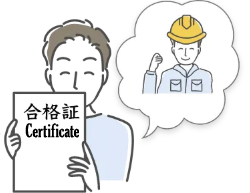
pass certificate Application Process
*Exam information includes your Prometric ID, exam number, exam location (country and city), exam date, and exam category, all of which are written on your Prometric Confirmation Letter.
- Log in to "JAC Members"
- Enter your information in the 'Application for Issuance of pass certificate'
- Check the details and apply
- The application is accepted
- Receive pass certificate
Step 1.
Log in to "JAC Members"
1-1. Display the login screen
Tap the "JAC Members" icon.
If you have forgotten your password, please check the link below.
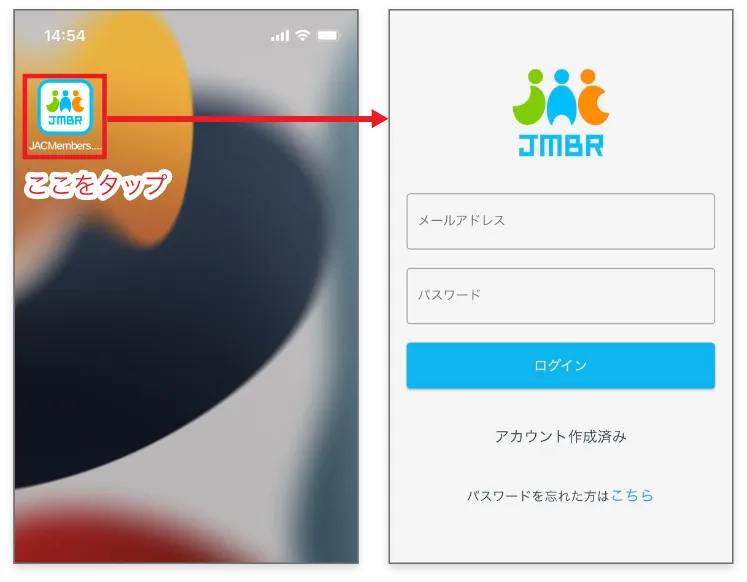
1-2. Log in to "JAC Members"
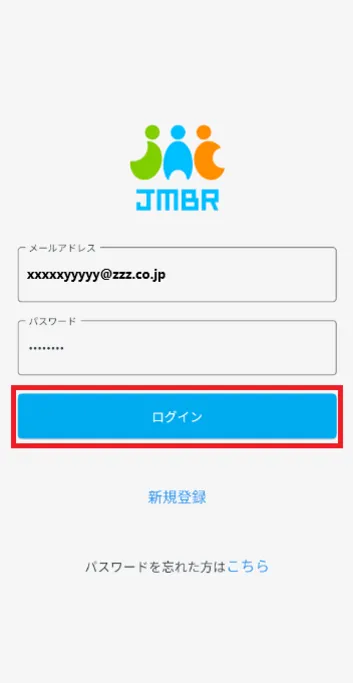
On the "JAC Members" login screen, enter your email address and password.
Tap [Login].
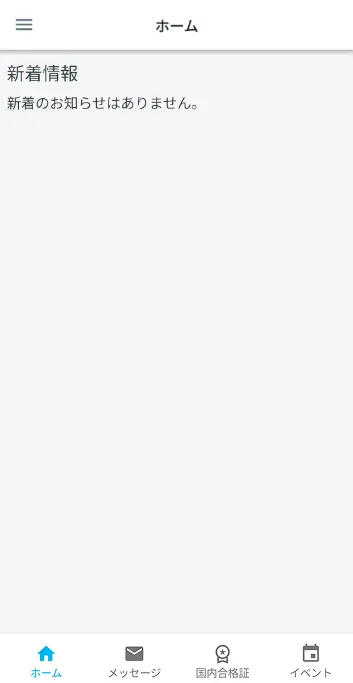
The "JAC Members" home screen will be displayed.
Step2.
Enter your information in the 'Application for Issuance of pass certificate'
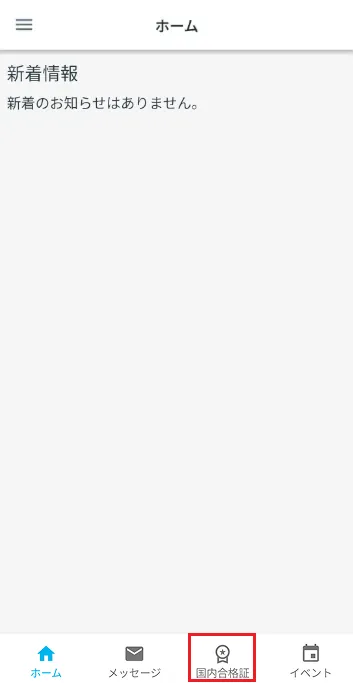
2-1. Tap 'Domestic pass certificate' from the menu
From the menu at the bottom of the "JAC Members" home screen, tap "Domestic pass certificate."
What should I do if I am unable to submit an application and a dialog box appears stating "You cannot submit a new application because you have already applied for the following."?
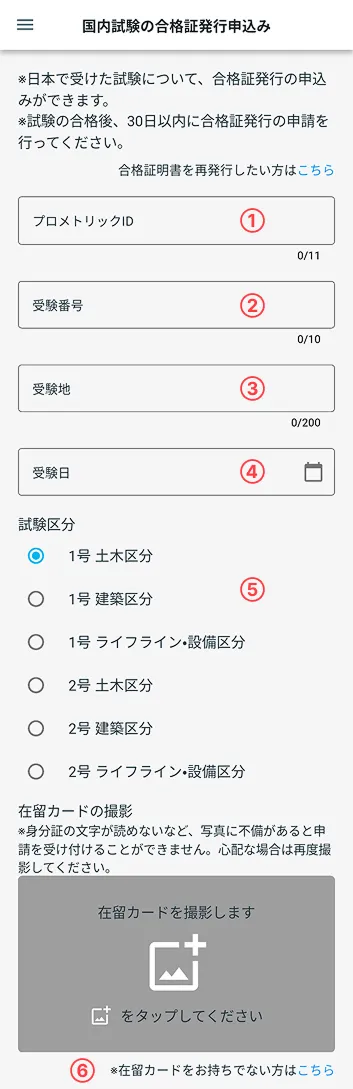
2-2. Enter your information in the 'Application for Issuance of pass certificate'
Please enter information about the exam you passed, such as the "Confirmation Letter" issued by Prometric. There are also options to select from.
Please enter the ID issued by Prometric using half-width capital letters "JP" + 7 half-width numbers.
Example: JP1234567
Please enter your examination number using 8 digits.
Example: 12345678
Please select your test location.
④Exam datePlease select the date you took the exam on the calendar.
You can begin the application process from the day after the exam.
Please select the category of the exam you passed.
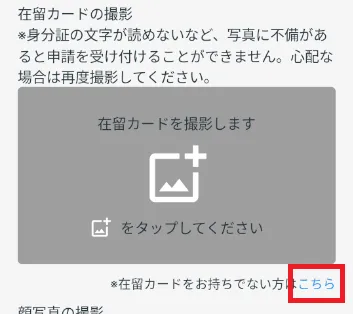
⑥ Take a photo of your residence card.If you have your residence card from when you took the exam, please take a picture of it according to the instructions on the app screen.
If you do not have a residence card, please tap "※Click here if you do not have a residence card" below.
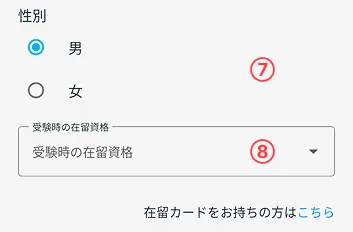
Enter your information
⑦ GenderPlease select your gender.
⑧ Status of residence at the time of taking the examPlease select "Designated Activities" or "Short-term Stay."
Please select the prefecture where you lived at the time of the exam.
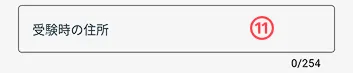
⑩ Address at time of examination (cont.)Enter the address where you lived at the time of the test.
(Example: Room 201, Maison Shinagawa, 1-1-2, Minato-ku)
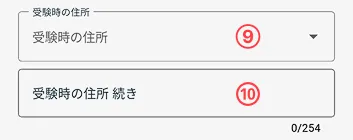
Enter the address outside of Japan where you were living at the time of the exam.
2-3. Take a photo of your ID
When using a residence card
*If you are using a specific residence card, please check the link below.
When using a specific residence card
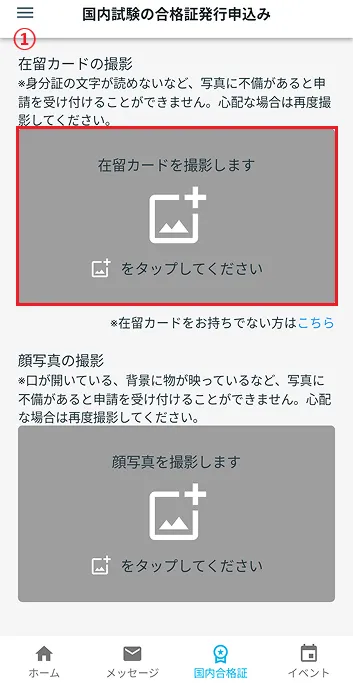
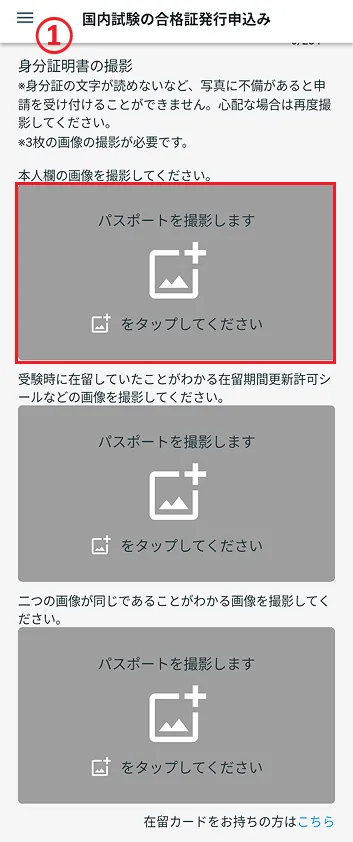
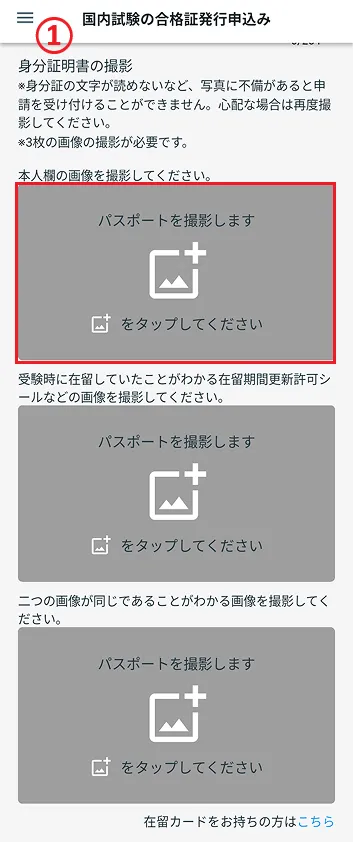
"We will take a photo of your residence card." Tap and take a photo of your residence card.
*If there are any defects in the photo, such as the characters on the ID being illegible, your application will not be accepted. If you are unsure, please take another photo.
- ① Tap
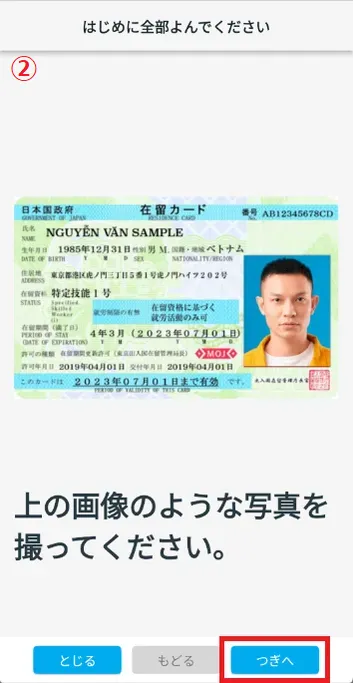
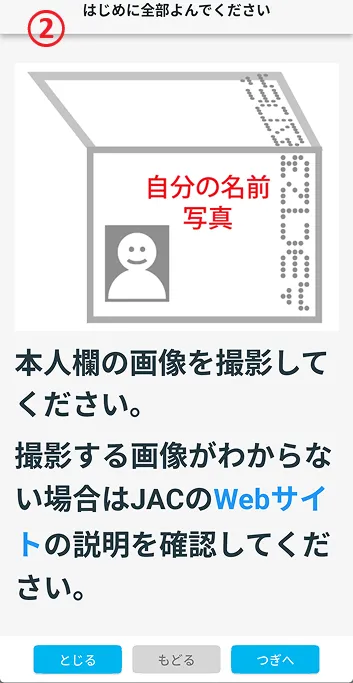
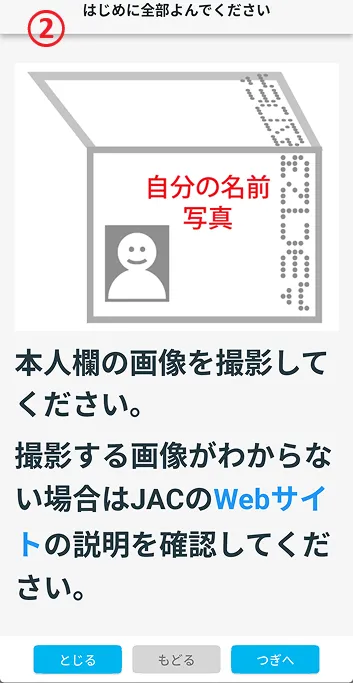
- ② Check the image and tap "Next".
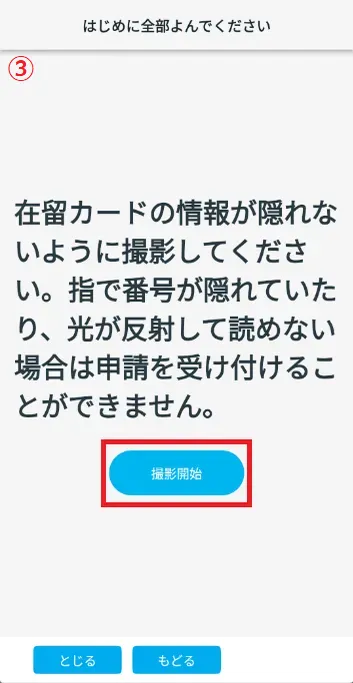
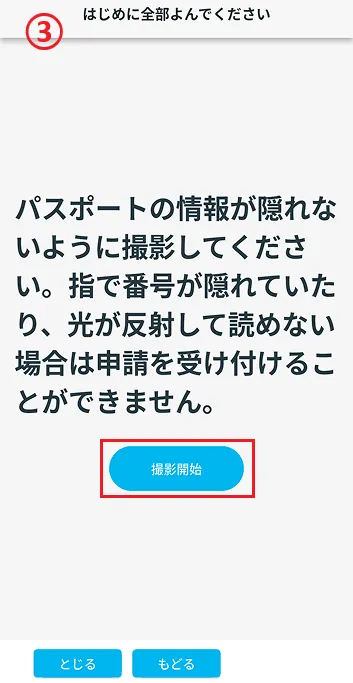
- ③ Check the warning text and tap "Start shooting."
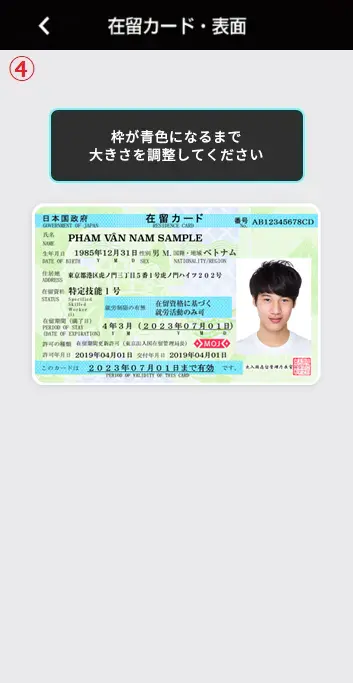
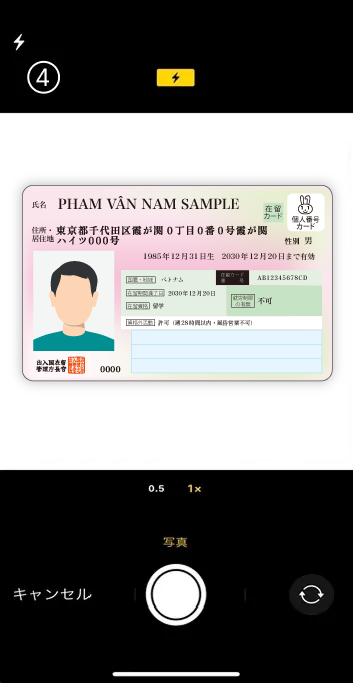
- ④ Adjust the size of your residence card and take the photo when the frame turns blue.
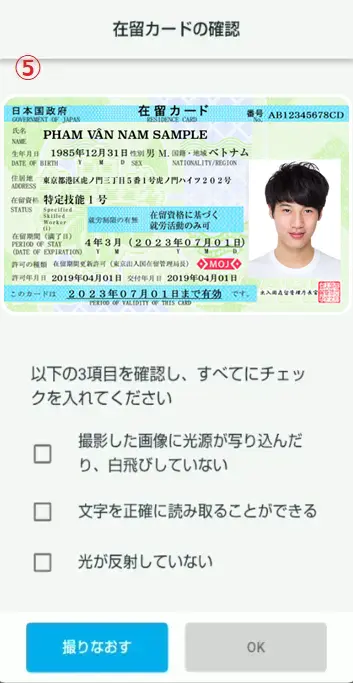
- ⑤ There are three check items to ensure that the photo of your residence card is taken correctly.
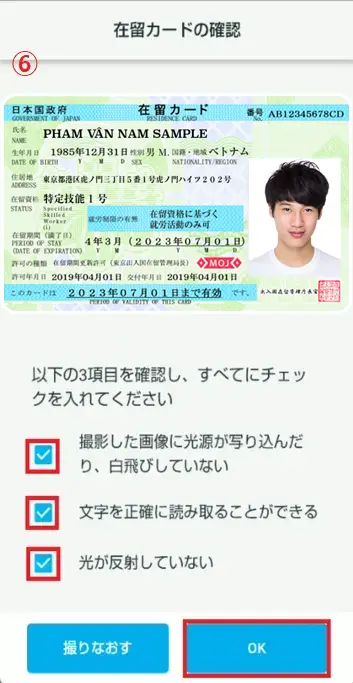
- ⑥ If you are happy with the settings, check all three boxes and tap "OK".
① Tap
② Check the image and tap "Next".
③ Check the warning text and tap "Start shooting."
④ Adjust the size of your residence card and take the photo when the frame turns blue.
⑤ There are three check items to ensure that the photo of your residence card is taken correctly.
⑥ If you are happy with the settings, check all three boxes and tap "OK".
If you use a passport
Under "Take a photo of your residence card," tap "Here" under "If you don't have a residence card, click here" to display the screen for using identification other than a residence card.
"Passport photo will be taken"Tap to take a photo of your passport.
*If there are any defects in the photo, such as the characters on the ID being illegible, your application will not be accepted. If you are unsure, please take another photo.
*If you have already taken a photo of your residence card, please proceed to "2-4. Take a photo of your face" from the link below.
2-4. Take a photo of your face
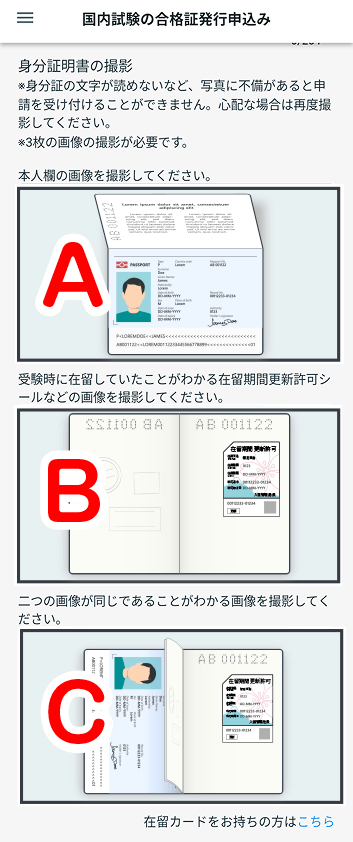
Take the following photo:
● Take all photos A, B, and C according to the instructions.
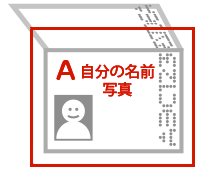
A page with your name on it
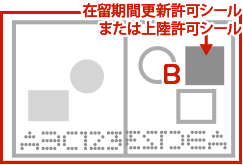
Pages with sticker for extension of period of stay or landing permission sticker
[For right page]
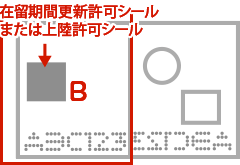
[For left page]
A photo showing that A and B are pages of the same passport
[If B is the right page]
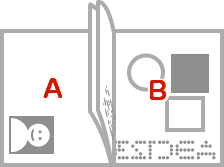
Take a photo of your entire passport so that pages A and B fit into one photograph.
[If B is the left page]
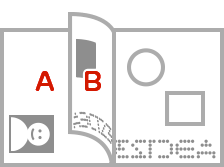
If pages A and B are on the left, fold the page so that the sticker on page B is visible before taking the photo.
Good photo
Bad photo
The process of taking a passport photo
Taking a photo of A
- ① The first oneTap
- ② Check the warning text and tap "Next".
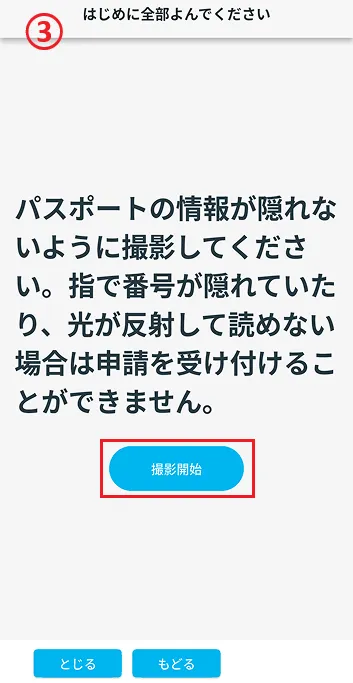
- ③ Check the warning text and tap "Start shooting."
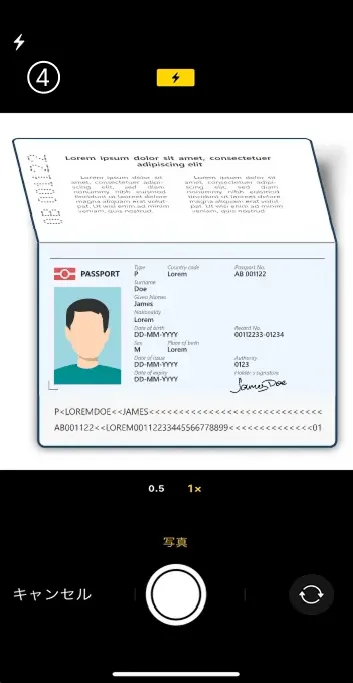
- ④ Take a photo of the page with your name on it.
- ⑤ Check the photos you took.
Once you have completed the checkboxes, check them. Once you have checked all three, tap "OK."
If you have not checked any of the items, tap "Take Again" and take the photo again.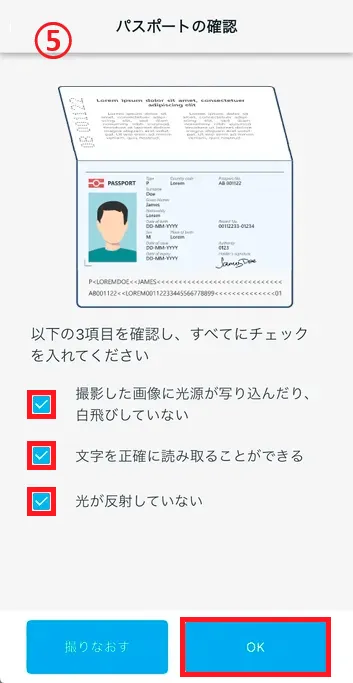
① The first oneTap
② Check the warning text and tap "Next".
③ Check the warning text and tap "Start shooting."
④ Take a photo of the page with your name on it.
⑤ Check the photos you took.
Once you have completed the checkboxes, check them. Once you have checked all three, tap "OK."
If you have not checked any of the items, tap "Take Again" and take the photo again.
Taking a photo of B
- ⑥ SecondTap
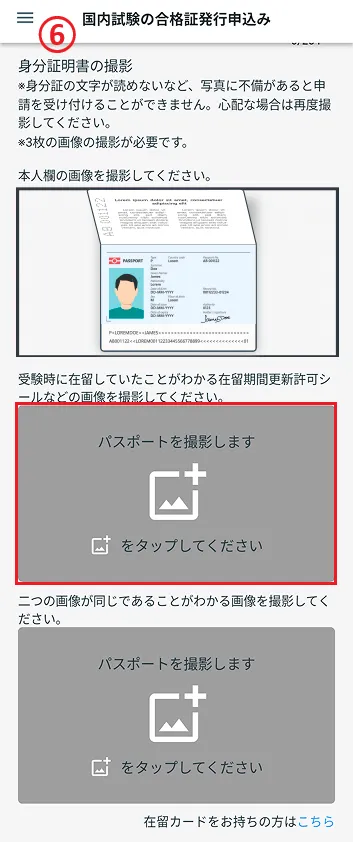
- ⑦ Check the warning and tap "Next".
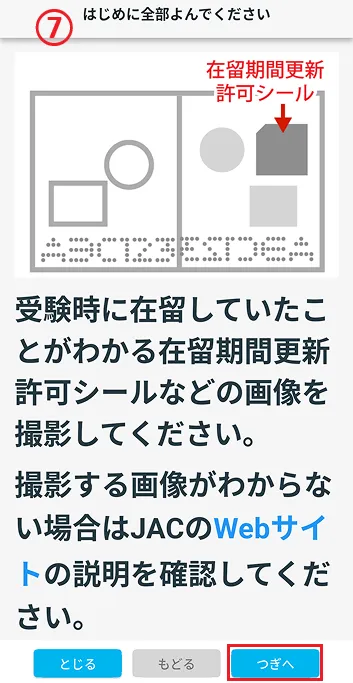
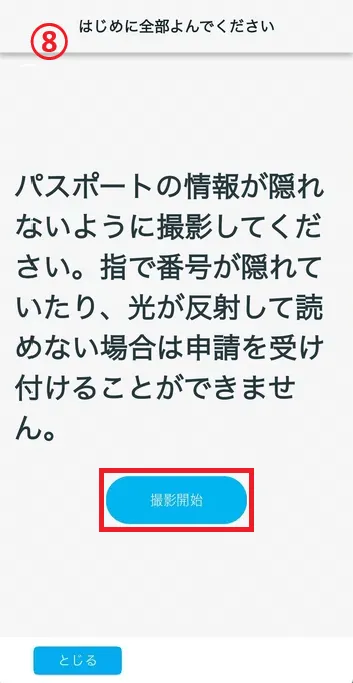
- ⑧ Check the warning and tap "Start shooting."
- (9) Take a picture of the page with "sticker for extension of period of stay" or "landing permission sticker" affixed to it.
If you select "Designated Activities" in the "Status of Residence at the Time of Examination", please take a photo of the page with "sticker for extension of period of stay" that shows that you were residing in the Japan at the time of the examination.
If you select "Short-term Stay" in the "Status of Residence at the Time of Examination"
Please take a photo of the page with "landing permission sticker" that shows that you were in Japan at the time of the exam.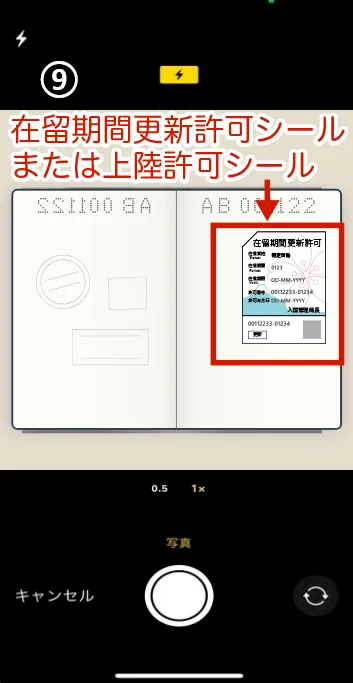
- ⑩ Check the photos you have taken.
Once you have completed the checkboxes, check them. Once you have checked all three, tap "OK."
If you have not checked any of the items, tap "Take Again" and take the photo again.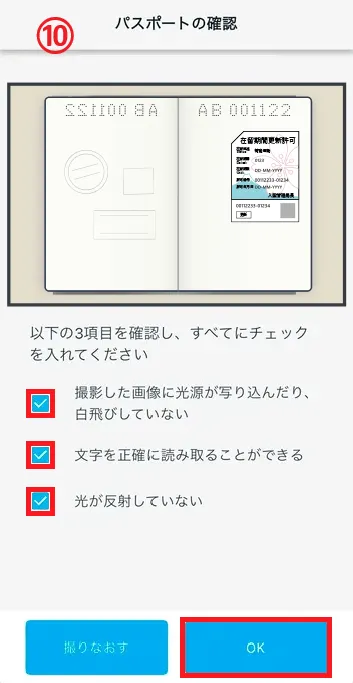
⑥ SecondTap
⑦ Check the warning and tap "Next".
⑧ Check the warning and tap "Start shooting."
(9) Take a picture of the page with "sticker for extension of period of stay" or "landing permission sticker" affixed to it.
If you select "Designated Activities" in the "Status of Residence at the Time of Examination", please take a photo of the page with "sticker for extension of period of stay" that shows that you were residing in the Japan at the time of the examination. If you select "Short-term Stay" in the "Status of Residence at the Time of Examination"
Please take a picture of the page with "landing permission sticker" that shows that you were in Japan at the time of the exam.
⑩ Check the photos you have taken.
Once you have completed the checkboxes, check them. Once you have checked all three, tap "OK."
If you have not checked any of the items, tap "Take Again" and take the photo again.
Taking a photo of C
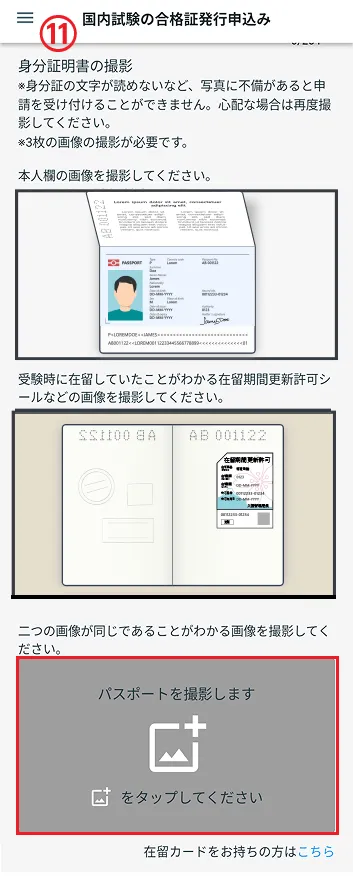
- ⑪ The thirdTap
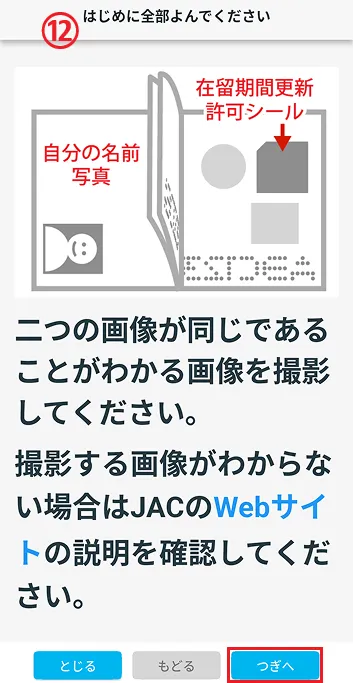
- ⑫ Check the warning and tap "Next."
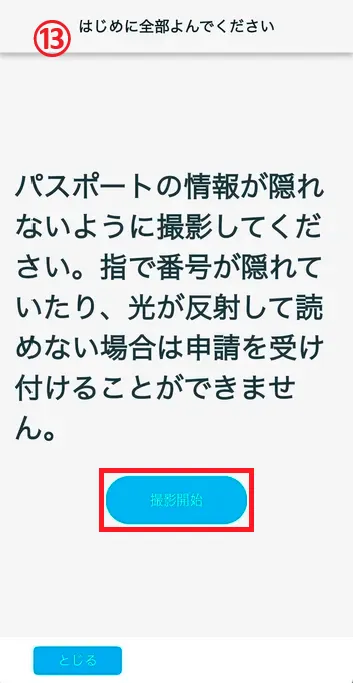
- ⑬ Check the warning and tap "Start shooting."
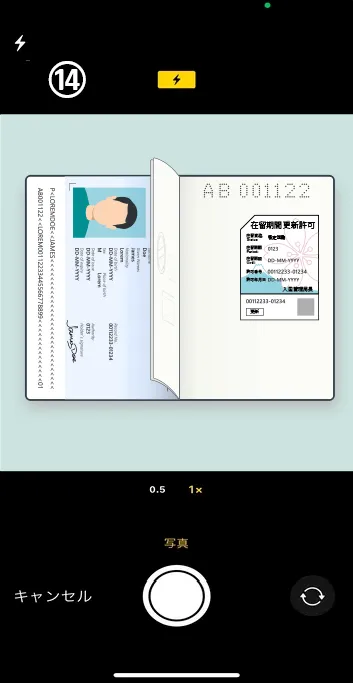
- ⑭ Take a picture so that both the page with your name and the page with "sticker for extension of period of stay" or "landing permission sticker" are pasted on it.
- ⑮ Check the photos you have taken.
Once you have completed the checkboxes, check them. Once you have checked all three, tap "OK."
If you have not checked any of the items, tap "Take Again" and take the photo again.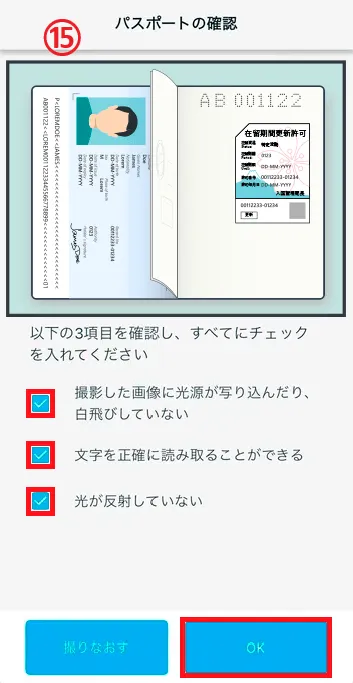
⑪ The thirdTap
⑫ Check the warning and tap "Next."
⑬ Check the warning and tap "Start shooting."
⑭ Take a picture so that both the page with your name and the page with "sticker for extension of period of stay" or "landing permission sticker" are pasted on it.
⑮ Check the photos you have taken.
Once you have completed the checkboxes, check them. Once you have checked all three, tap "OK."
If you have not checked any of the items, tap "Take Again" and take the photo again.
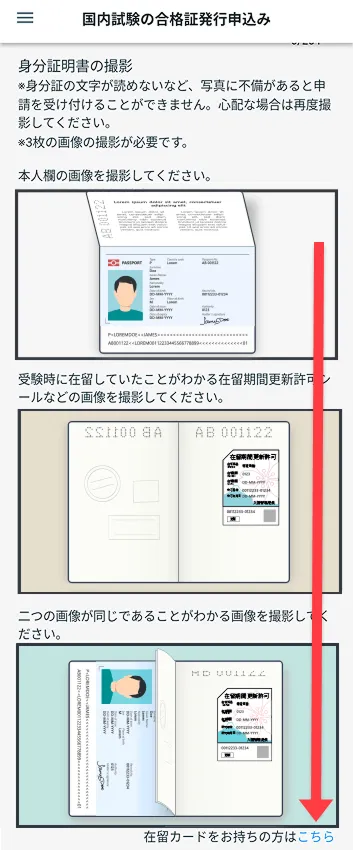
This completes the passport photo shoot.
You will return to the first screen.
Once your photo fits in all three frames, your passport photo shoot is complete.
When using a specific residence card
Under "Take a photo of your residence card," tap "Here" under "If you don't have a residence card, click here" to display the screen for using identification other than a residence card.
"Passport photo will be taken"Tap and take a picture of your specific residence card.
*If there are any defects in the photo, such as the characters on the ID being illegible, your application will not be accepted. If you are unsure, please take another photo.
*If you have taken a photo of your specific residence card, please proceed to "2-4. Take a photo of your face" via the link below.
2-4. Take a photo of your face.
Take a photo of the side of your residence card that shows your name and photograph.
The side with your name on it
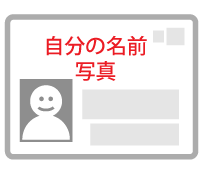
Good photo
Bad photo
Please take three identical photos. (The app screen shows an example of a passport photo.)
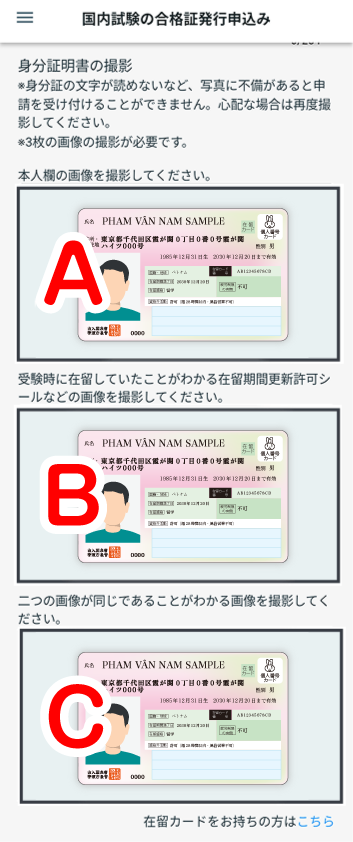
The process for taking photos of specific residence cards
Taking a photo of A
- ① The first oneTap
- ② Check the warning text and tap "Next".
- ③ Check the warning text and tap "Start shooting."
- ④ Take a picture of the side with your name on it.
- ⑤ Check the photos you took.
Once you have completed the checkboxes, check them. Once you have checked all three, tap "OK."
If you have not checked any of the items, tap "Take Again" and take the photo again.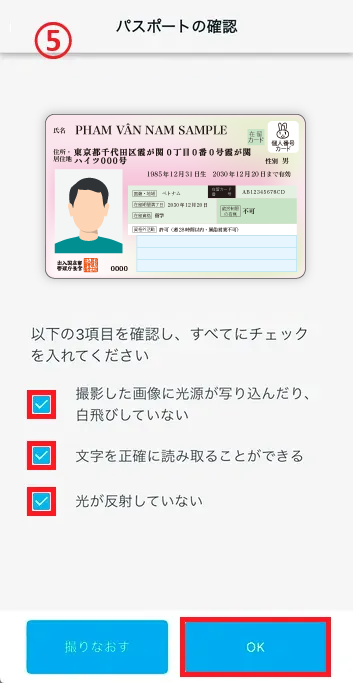
① The first oneTap
② Check the warning text and tap "Next".
③ Check the warning text and tap "Start shooting."
④ Take a picture of the side with your name on it.
⑤ Check the photos you took.
Once you have completed the checkboxes, check them. Once you have checked all three, tap "OK."
If you have not checked any of the items, tap "Take Again" and take the photo again.
Taking a photo of B
- ⑥ SecondTap
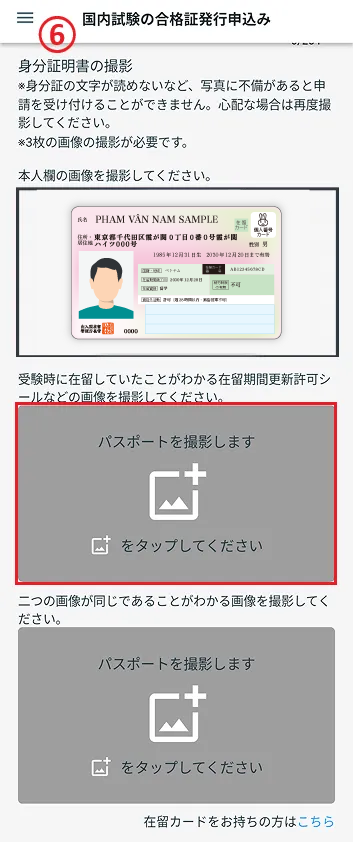
- ⑦ Check the warning and tap "Next".
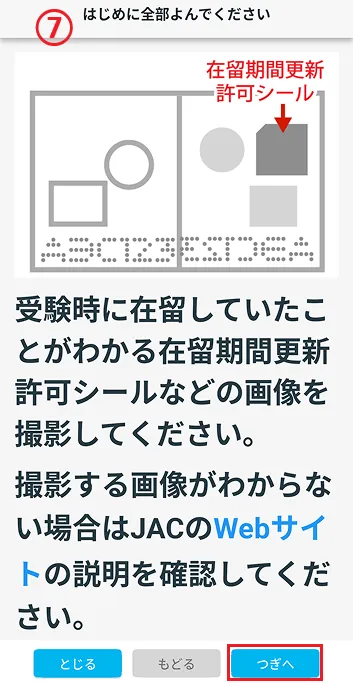
- ⑧ Check the warning and tap "Start shooting."
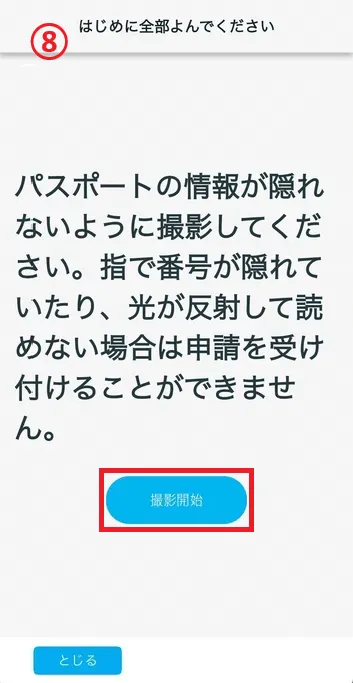
- ⑨ Take a picture of the side with your name on it.
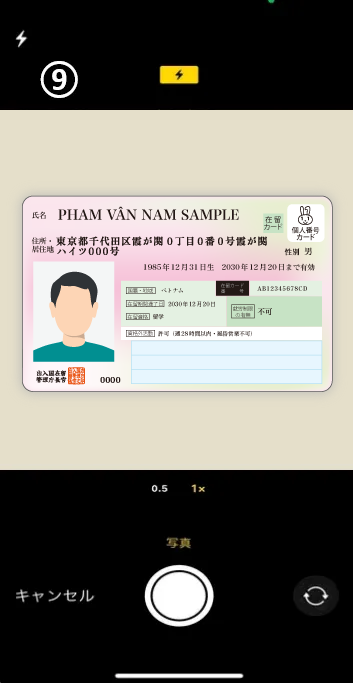
- ⑩ Check the photos you have taken.
Once you have completed the checkboxes, check them. Once you have checked all three, tap "OK."
If you have not checked any of the items, tap "Take Again" and take the photo again.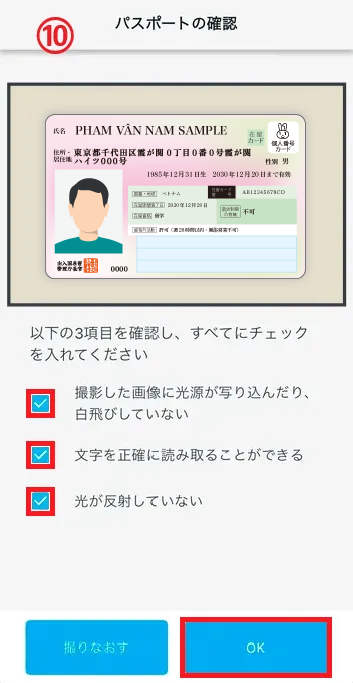
⑥ SecondTap
⑦ Check the warning and tap "Next".
⑧ Check the warning and tap "Start shooting."
⑨ Take a picture of the side with your name on it.
⑩ Check the photos you have taken.
Once you have completed the checkboxes, check them. Once you have checked all three, tap "OK."
If you have not checked any of the items, tap "Take Again" and take the photo again.
Taking a photo of C
- ⑪ The thirdTap
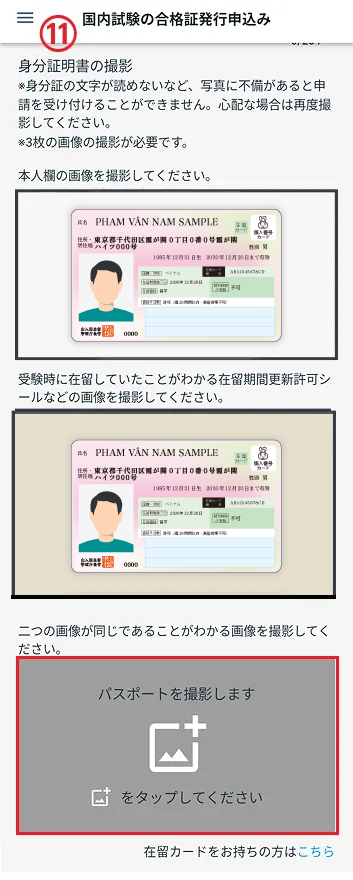
- ⑫ Check the warning and tap "Next."
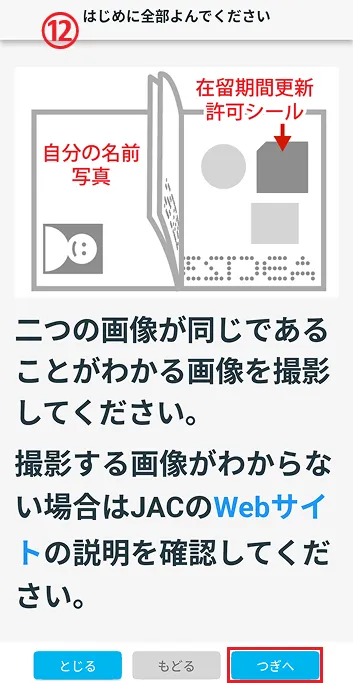
- ⑬ Check the warning and tap "Start shooting."
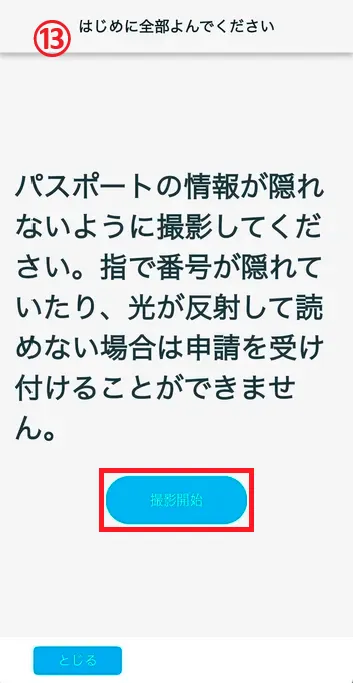
- ⑭ Take a picture of the side with your name on it.
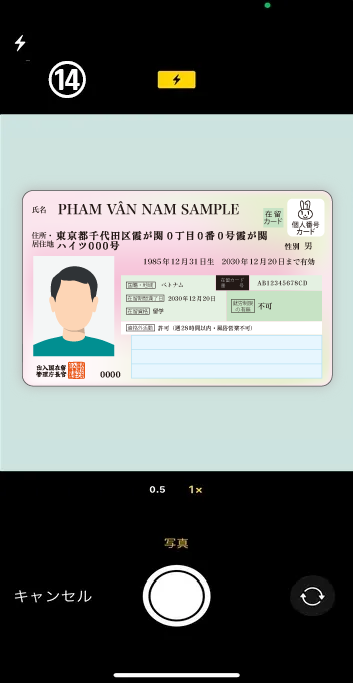
- ⑮ Check the photos you have taken.
Once you have completed the checkboxes, check them. Once you have checked all three, tap "OK."
If you have not checked any of the items, tap "Take Again" and take the photo again.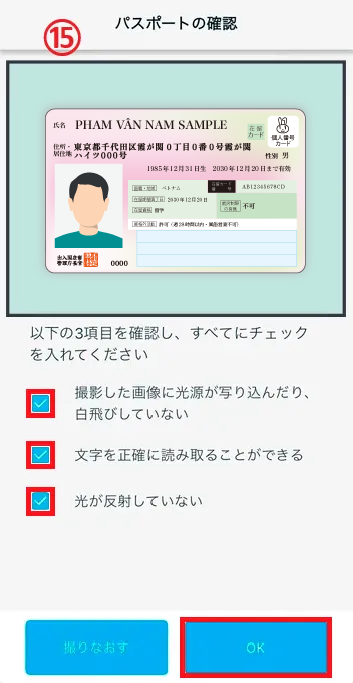
⑪ The thirdTap
⑫ Check the warning and tap "Next."
⑬ Check the warning and tap "Start shooting."
⑭ Take a picture of the side with your name on it.
⑮ Check the photos you have taken.
Once you have completed the checkboxes, check them. Once you have checked all three, tap "OK."
If you have not checked any of the items, tap "Take Again" and take the photo again.
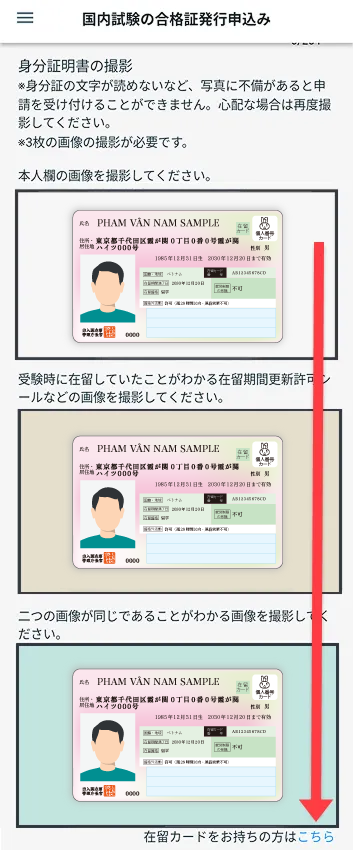
This concludes the photo shoot for your specific residence card.
Return to the initial screen.
Once your photo is in all three designated slots, the photo shoot for your specific residence card is complete.
2-4. Take a photo of your face
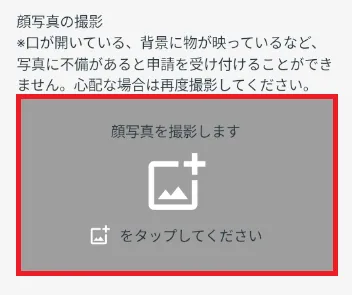
"Take a photo of your face" Tap. An explanation of what you need to be careful of will be displayed. Read the explanation carefully. Tap the [Start shooting] button to take a photo.
*If there are any imperfections in the photo, such as your mouth being open or there being something in the background, your application will not be accepted. If you are unsure, please take a new photo.
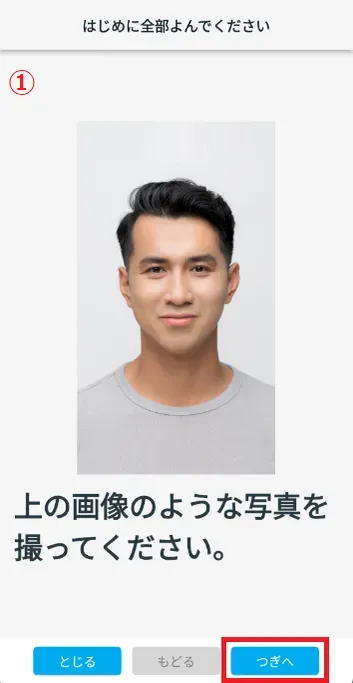
Flow of taking a face photo
(image)
- ① Check the image of the face photo you want to take and tap "Next".
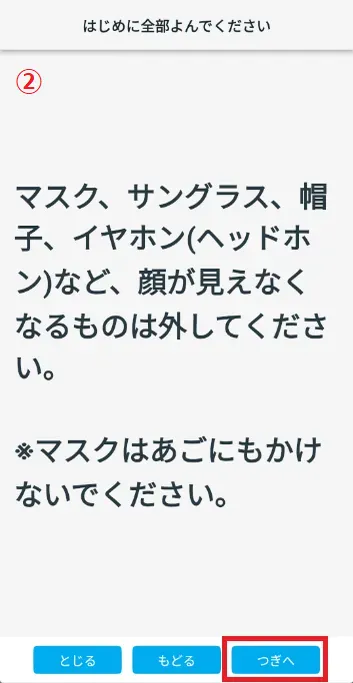
- ② Check the warning text and tap "Next".
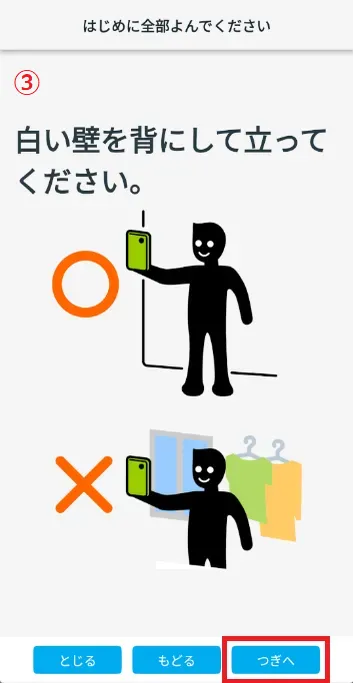
- ③ Check the warnings and images, then tap "Next."
- ④ Check the warnings and images, then tap "Next."
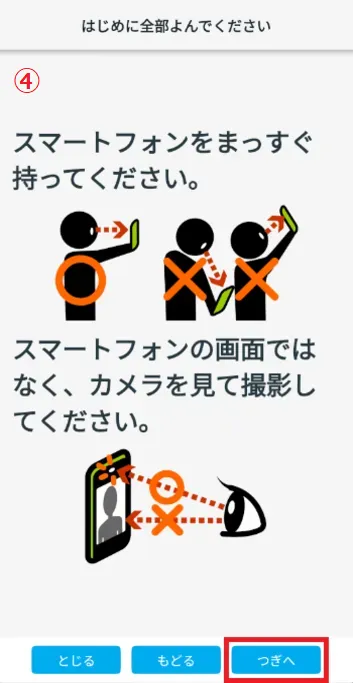
- ⑤ Tap "Start shooting".
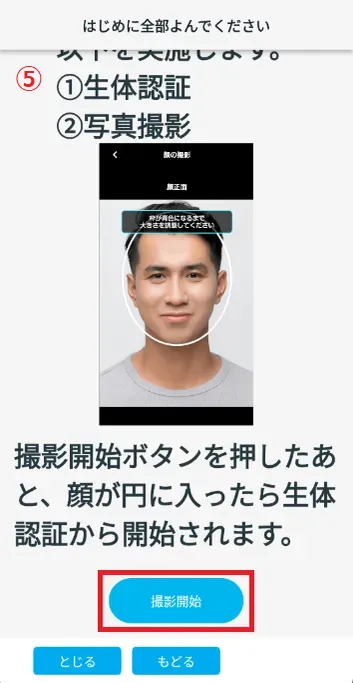
- ⑥ Move your smartphone so that your face is within the frame to perform biometric authentication.
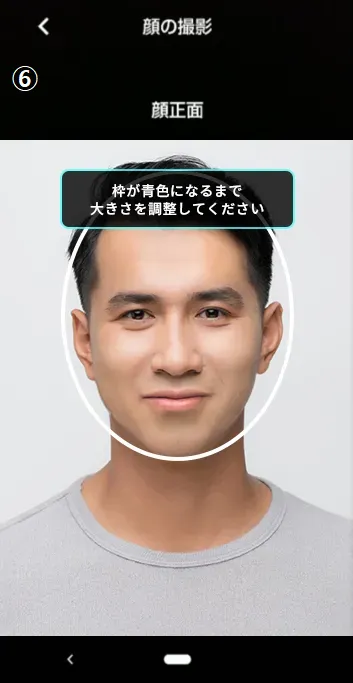
- ⑦ Tap the button to take a photo of your face.
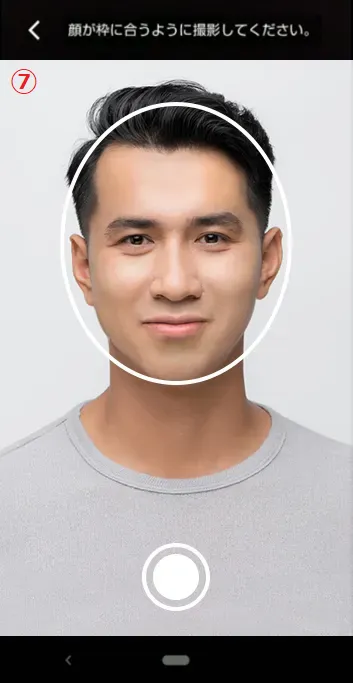
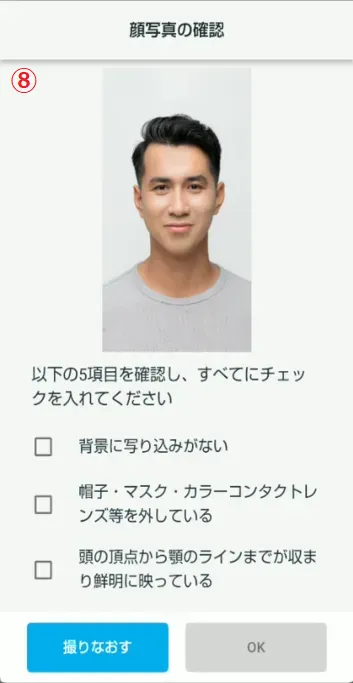
- ⑧ Refer to the sample image and check if there are any problems with the photo of your face that you have taken.
① Check the image of the face photo you want to take and tap "Next".
② Check the warning text and tap "Next".
③ Check the warnings and images, then tap "Next."
④ Check the warnings and images, then tap "Next."
⑤ Tap "Start shooting".
⑥ Move your smartphone so that your face is within the frame to perform biometric authentication.
⑦ Tap the button to take a photo of your face.
⑧ Refer to the sample image and check if there are any problems with the photo of your face that you have taken.
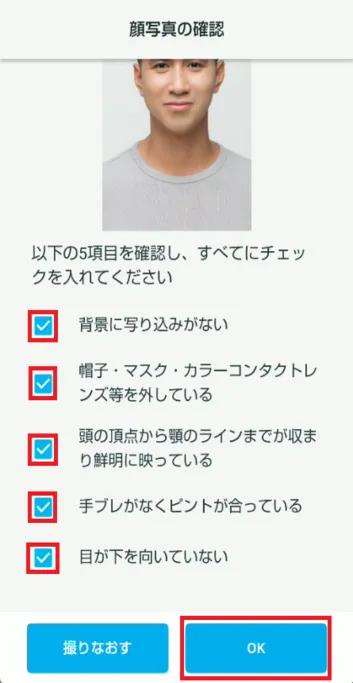
On the "Confirm Face Photo" screen, check that the photo is clear. If it is clear, check each item and tap the [OK] button.

Good photo
image
Bad photo
image

Photos of people wearing masks, earphones, sunglasses, etc. Glasses are good 
A photo of someone wearing a mask on their chin. 
Photos of people wearing hats or helmets. 
Out-of-focus photo 
Photos taken without clothes 
A photo of a face taken in a dark place 
Photographs with people or objects in the background 
A photo of someone with their face turned to the side.
2-5. Enter other information (person who took a photo of their residence card with their ID)
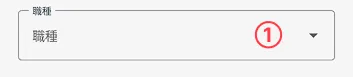
Please select the job category you wish to apply for.
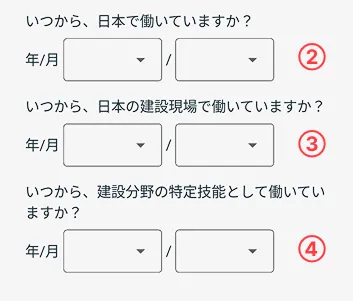
Please select the year and month.
③How long have you been working at a construction site in Japan?Please select the year and month.
(4) Since when have you been working as a Specified Skills in the construction sector?Please select the year and month.
2-6. Enter other information (common)
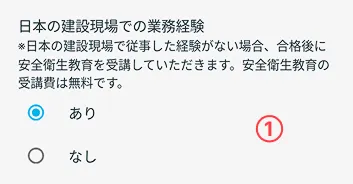
Experience working at a construction site in Japan
① Work experience at a construction site in JapanIf you have never worked at a construction site in Japan, please select "None." After passing, you can take the "Safety and Health Education" for free (0 yen).
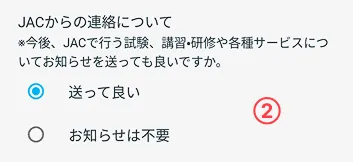
Contact from JAC
② Contact from JACIf you select "OK to send," you will receive emails with event information, etc.
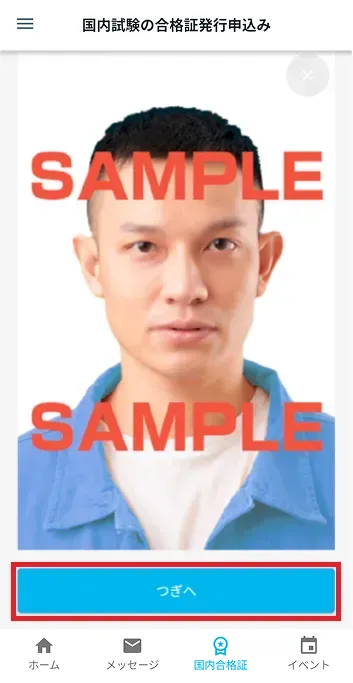
2-7. Once you have entered all the information, tap [Next]
Once you have entered your information and taken a photo of your face, tap [Next].
Step 3.
Check the details and apply
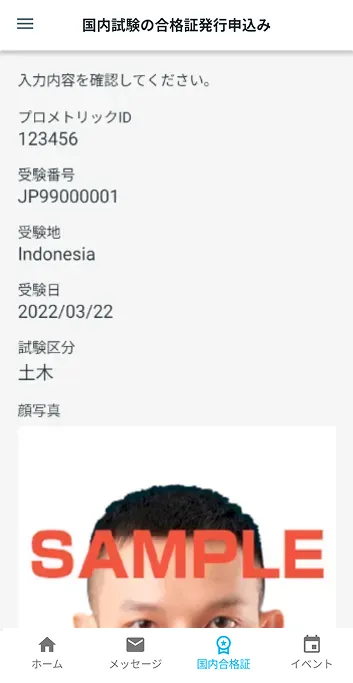
3-1. Check the details and apply
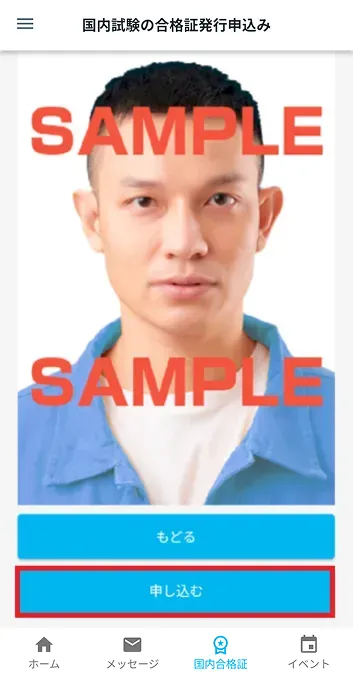
Review the application details for 'Application for Issuance of pass certificate.' If there are no objections to your application, tap [Apply].
If you want to edit your application, tap [Return] and re-enter your application information.
What should I do if I am unable to submit an application and a dialog box appears stating "You cannot submit a new application because you have already applied for the following."?
Step 4.
The application is accepted
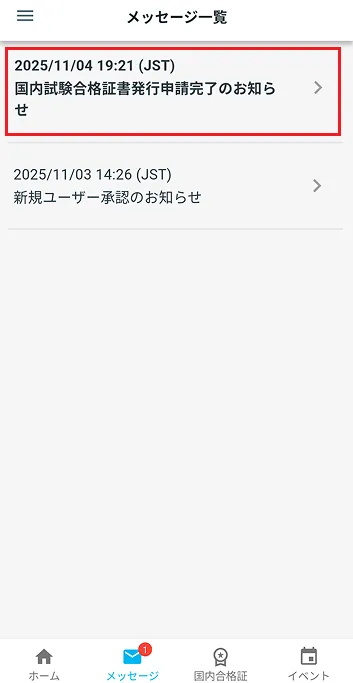
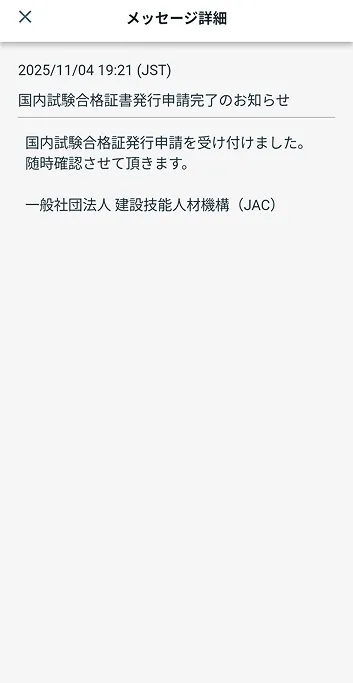
4-1. pass certificate Check the message confirming the completion of the issuance application
Once your pass certificate application is accepted, a message will appear in the app's message list notifying you that your application for pass certificate issuance has been accepted.
Step5.
Receive pass certificate
5-1. pass certificate is issued
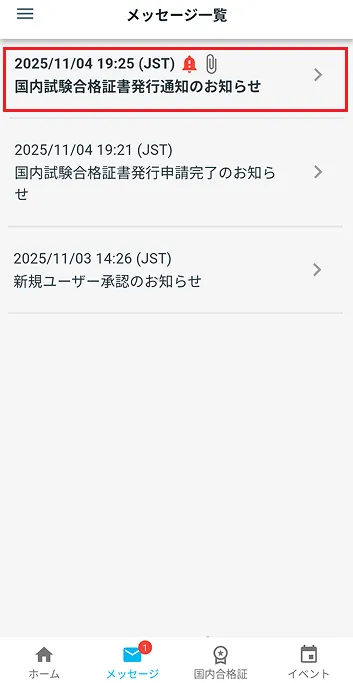
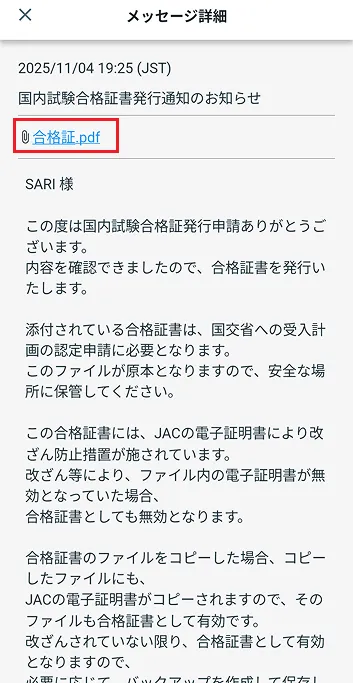
When a pass certificate is issued, a message notifying you of the pass certificate issuance will appear in the app's message list.
Open the message and tap pass certificate to start downloading.
Once the download is complete, you'll see a folder where the pass certificate is saved. Open that folder and check the downloaded pass certificate.
Please check the link below to see where the downloaded PDF file will be saved.
What should I do if I don't know where the files downloaded using the "JAC Members" app are saved?
If the downloaded PDF file does not open when you click on it, please check the link below.
When you can't open a downloaded PDF
Frequently Asked Questions (FAQ)
- I want to install the "JAC Members" app. Where can I get it?
- I forgot the password I registered for "JAC Members."
- I got a new smartphone. Can I use it as is?
- How do I send a message to JAC using the "JAC Members" app?
- I don't have a passport. I changed my smartphone, so can I apply for a change of device?
- How do I delete my account?
- How can I get a pass certificate for exams taken outside Japan?
- How can I get a pass certificate for an exam I took in Japan?
- A "Supported version change notification" dialog box appears on the app screen. What should I do?
- What should I do if I don't know where the files I downloaded using the "JAC Members" app are saved?
- What should I do if I don't know where the files I downloaded from "My Page" are saved?
- What should I do if I am unable to submit an application and a dialog box appears stating "You cannot submit a new application because you have already applied for the following."?
Index
Account registration and basic operations
The Specified Skills Evaluation Exam Related