
About JAC website multilingualization
The JAC website uses AI automatic translation (machine translation). Because it is machine translation, the translation may not always be accurate.
About the automatic translation (machine translation) function
- The website is automatically translated (machine translated) according to the language settings of the device you are using to view the website.
- To change the language, open the language selection panel from the Language button in the header and select the language.
- Some proper nouns may not be translated correctly.
- Some pages are not automatically translated. PDFs are not translated.
- Links to external sites will not be translated.
Note
- Please enable JavaScript when using this function.
- This function may not be available in some browsers or viewing environments.



We provide multilingual content through machine translation. Translation accuracy is not 100%. About the multilingualization of the JAC website
If you choose "Plain Japanese", it will be a simple sentence and a phonetic.
If you select "Attach hiragana", you will add furigana to your sentence.
You can select your native language in "Language" to translate it.
I don't understand... I'm in trouble... If that happens, please contact us.
- First, check out the Q&A!Concerns about living in Japan
Work worries Q&A - Free consultation with JAC *Only within Japan
 Weekdays 9:00-17:30 Closed on weekends and holidays
 - FITS (Foundation for International Transfer of Skills and Knowledge in Construction) is available to answer your enquiries in your native language via telephone, fax or email.

-
We provide multilingual content through machine translation. Translation accuracy is not 100%. About the multilingualization of the JAC website
If you choose "Plain Japanese", it will be a simple sentence and a phonetic.
If you select "Attach hiragana", you will add furigana to your sentence.
You can select your native language in "Language" to translate it.
Those taking the exam outside of Japan
★A blog for foreigners working in Japan★



Those taking the exam outside of Japan
Release date: 2024/11/29
Frequently asked questions about using the "JAC Members" app
We have compiled a list of frequently asked questions about how to use the "JAC Members" app.
- I want to install the "JAC Members" app. Where can I get it?
- I forgot the password I registered for "JAC Members".
- I got a new smartphone. Can I use it as is?
- How do I send a message to JAC using the "JAC Members" app?
- I don't have a passport. I changed my smartphone, so can I apply for a change of device?
- How do I delete my account?
- How can I get a pass certificate for exams taken outside Japan?
- How can I get a pass certificate for an exam I took in Japan?
- A "Supported version change notification" dialog box appears on the app screen. What should I do?
- What should I do if I don't know where the files I downloaded using the "JAC Members" app are saved?
- What should I do if I don't know where the files I downloaded from "My Page" are saved?
- What should I do if I am unable to submit an application and a dialog box appears stating "You cannot submit a new application because you have already applied for the following."?
- How can Japanese residents apply for pass certificate of The Specified Skills Evaluation Exam taken outside Japan?
- How can Japanese residents reissue pass certificate The Specified Skills Evaluation Exam taken outside Japan?
*App Store and iPhone are trademarks of Apple Inc., registered in the U.S. and other countries.
*Google Play and the Google Play logo are trademarks of Google LLC.
- I want to install the "JAC Members" app. Where can I get it?
-
Scan the QR code on the right with your smartphone or tap the button.
The link destination will differ depending on the smartphone's OS.iOS
Install on
 Android
Install on

- I forgot the password I registered for "JAC Members".
- Please follow the link below and register a new password.
Reset Password
- I got a new smartphone. Can I use it as is?
- If you change your smartphone, it will no longer work as is. If you change your smartphone, please check the link below and apply for a device change. To apply for a device change, you will need your Japanese residence card, passport, or government-issued photo ID card from your country.
When you change your smartphone (device)
- How do I send a message to JAC using the "JAC Members" app?
-
You cannot send messages to JAC from the "JAC Members" app.
Please contact JAC via the details below.
Japanese/English: Inquiry form
Indonesian: What'sApp
- I don't have a passport. I changed my smartphone, so can I apply for a change of device?
-
In addition to passports, photo ID cards issued by various governments can also be used to apply for device changes.
(People in Japan can also apply for the change using their Japanese residence card.)
To apply for a device change using a government-issued photo ID card or residence card, please open the link below, "When you change your smartphone (changing your device)," and follow the steps up to "2-1. Display the 'Device Change Application' screen," before performing this operation.
When you change your smartphone (device)1. Enter your information and take a photo of your ID and face
Example 1) Government-issued ID (photo + ID)
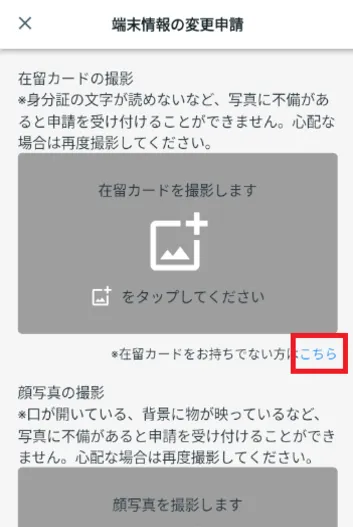
A) Display the screen for "Device Change Request" using government-issued ID
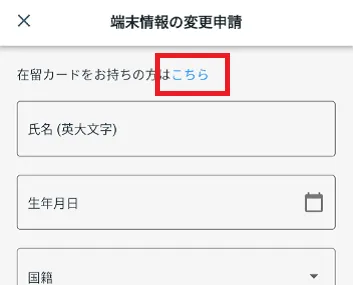
Tap "If you don't have a residence card, click here."
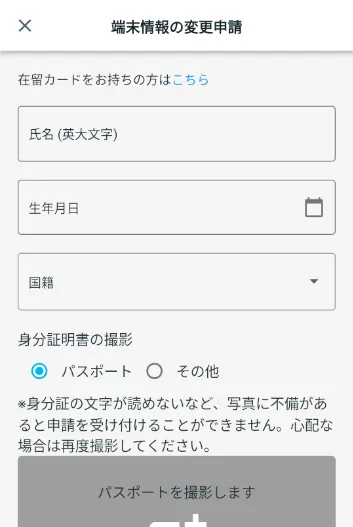
B) Enter your name, date of birth, and nationality
Enter your name, date of birth and nationality.
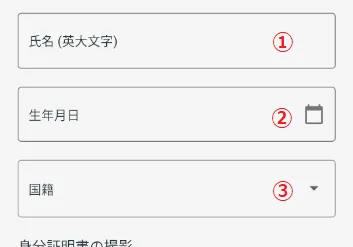 ① Name
Enter your name.
② Date of birth
Example: JOHN SMITH
Select the date of birth from the calendar that appears.
③Nationality
Choose your nationality.
C) Photograph your government-issued ID
Under "Photograph ID," select "Other." "Photograph your government-issued photo ID" will be displayed.
- Below is my government issued ID.
- A Japan Individual Number Cards ("My Number Card") ID card with a photo (Resident Identification Card)
- Student Card
- Driver's License
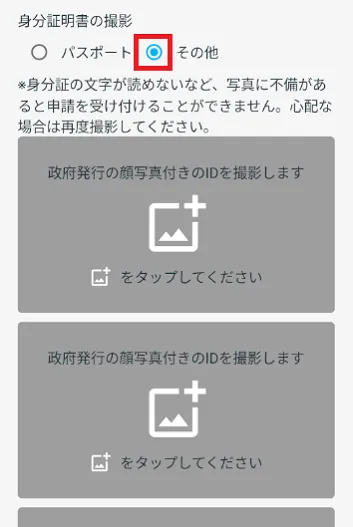
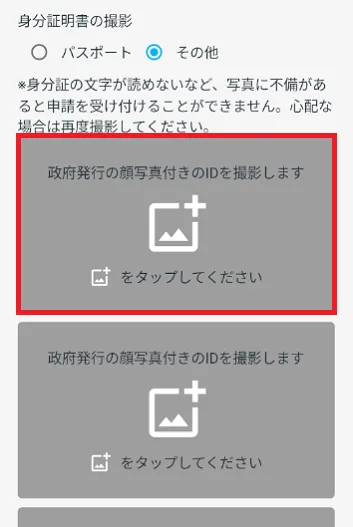
Tap "Take a photo of your government-issued photo ID."
Take a photo of your face and the front and back of a card or other official ID.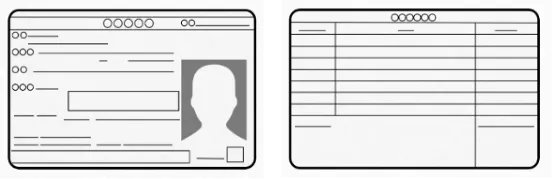
★Good photos
・The characters are clearly readableBad Photos
・It's shining and I can't make out faces or lettersPlease check "2. Take a photo of your face" from the link below.
2. Take a photo of your faceExample 2) Residence card
A) Display the screen when applying for a device change using a residence card
Check that "Take a photo of your residence card" is displayed. If it is not displayed, tap "If you have a residence card, click here."
B) Take a photo of your residence card
Click "Photo your residence card"
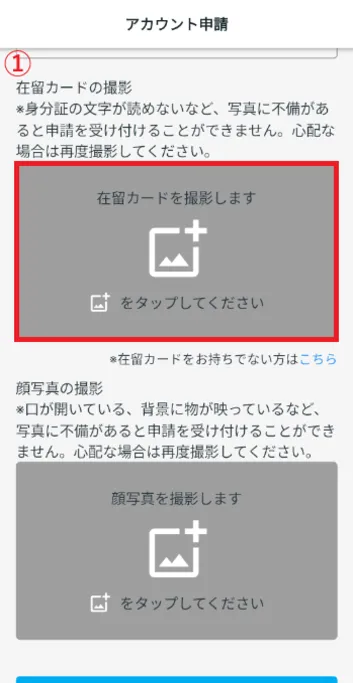
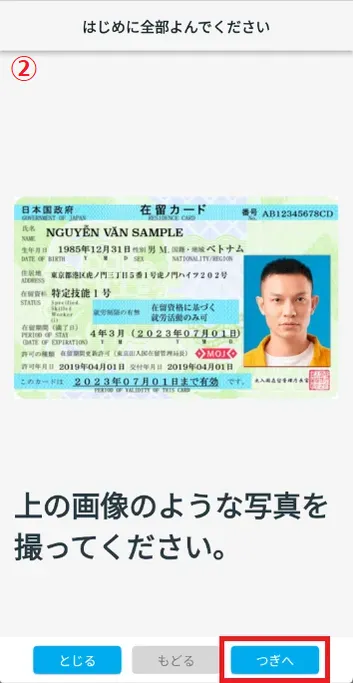
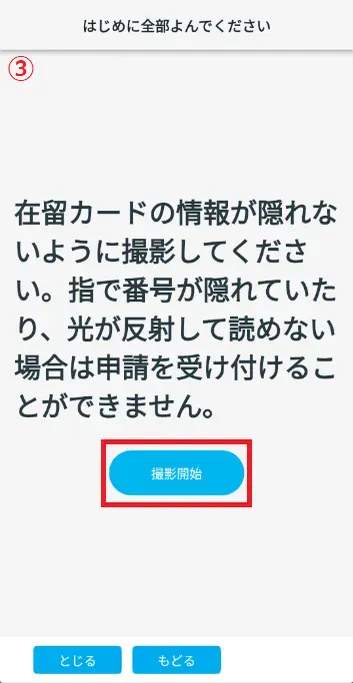
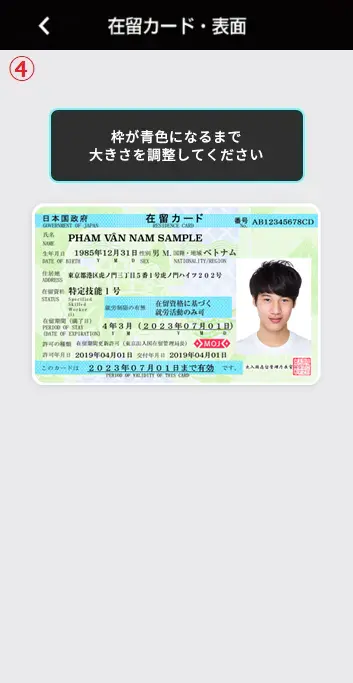
 Please read the instructions on the screen carefully and take a photo of your residence card in the same way as the "Residence Card Photo Steps" below.
Residence card photo shoot process*If there are any defects in the photo, such as the characters on the ID being illegible, your application will not be accepted. If you are unsure, please take another photo.
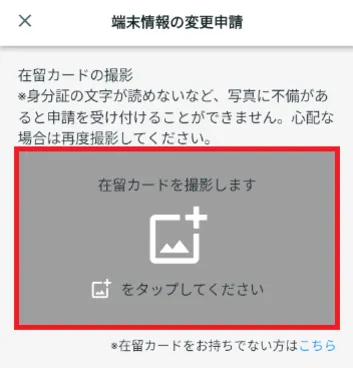
Flow of taking a photo of your residence card
*If there are any defects in the photo, such as the characters on the ID being illegible, your application will not be accepted. If you are unsure, please take another photo.
- ① Tap
- ② Check the image and tap "Next".
- ③ Check the warning text and tap "Start shooting."
- ④ Adjust the size of your residence card and take the photo when the frame turns blue.
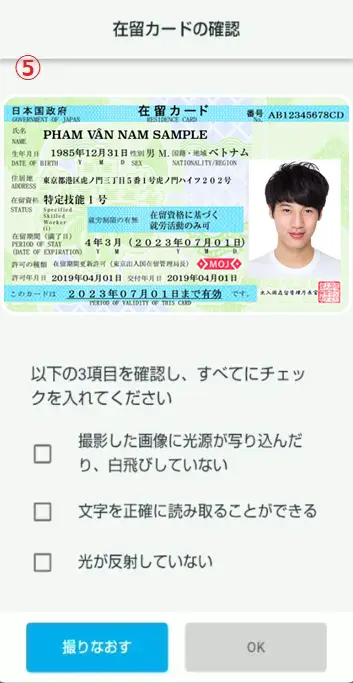
- ⑤ There are three check items to ensure that the photo of your residence card is taken correctly.
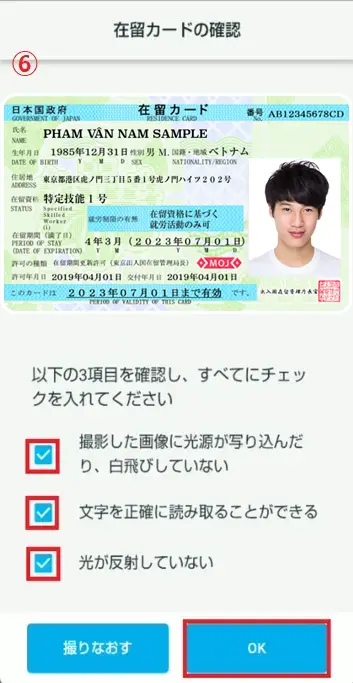
- ⑥ If you are happy with the settings, check all three boxes and tap "OK".
①
Tap② Check the image and tap "Next".
③ Check the warning text and tap "Start shooting."
④ Adjust the size of your residence card and take the photo when the frame turns blue.
⑤ There are three check items to ensure that the photo of your residence card is taken correctly.
⑥ If you are happy with the settings, check all three boxes and tap "OK".
Verify your ID number.
Please verify your identification number.
If your identification number is not automatically entered correctly, please enter it correctly.
[Input Rules]
Please enter everything using half-width characters.
Format: 2 English letters + 8 digits + 2 English letters
- Example input: AB12345678CD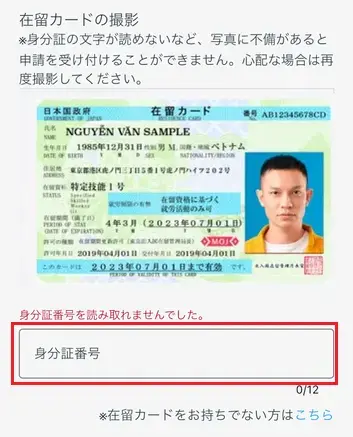
2. Take a photo of your face
Once you have filled everything in, follow the steps in the link below.
When you change your smartphone (changing your device) 2-4. Take a photo of your face
- How do I delete my account?
- If you would like to delete your "JAC Members" account, please check the link below.
Delete your account
- How can I get a pass certificate for exams taken outside Japan?
The application process varies depending on the country you currently live in. Please check either option 1 or 2 below.
1. If you currently live outside Japan
Please check the link below and apply.
Apply for pass certificate of The Specified Skills Evaluation Exam taken outside Japan (if you currently live outside Japan)2. If you are currently living in Japan
Please check the link below and apply.
Apply for The Specified Skills Evaluation Exam pass certificate taken outside Japan (if you currently reside in Japan)
- How can I get a pass certificate for an exam I took in Japan?
-
The method of receiving pass certificate varies depending on when you took the test, the country you took the test, and the country where you currently live.
Check the table below to confirm the time and location of the test and receive it by one of A, B, C, or D methods.
Time of taking the exam Until December 2024 January to November 2025 From December 2025 Taking the exam in Japan ABCTaking the exam outside Japan DDDAPlease check the result notification on the Prometric website for test results.
Prometric The Specified Skills (i) Evaluation Exam Details & Application
Prometric The Specified Skills (ii) Evaluation Exam Details & Applicationpass certificate Please receive them through the "JAC Members" app.
The application process varies depending on the country where you currently live. Please check the following 1 or 2.1. If you are currently living in Japan
Please check the link below and apply.
Apply for pass certificate of The Specified Skills Evaluation Exam taken in Japan (if you currently live in Japan)2. If you currently live outside Japan
Please check the link below and apply.
Apply for pass certificate of The Specified Skills Evaluation Exam taken in Japan (if you currently live outside Japan)BPlease reissue it using the "JAC Members" app.
Reissue pass certificate of the The Specified Skills Evaluation Exam you took in JapanCJACのマイページのID(メールアドレス)を使用して、JAC試験事務局()までお問い合わせください。
To check messages on JAC's My Page, please check the link below.
Check exam results and pass certificate in 'My Page'DPlease receive pass certificate through the "JAC Members" app.
The application process varies depending on the country where you currently live. Please check the following 1 or 2.1. If you currently live outside Japan
Please check the link below and apply.
Apply for pass certificate of The Specified Skills Evaluation Exam taken outside Japan (if you currently live outside Japan)2. If you are currently living in Japan
Please check the link below and apply.
Apply for The Specified Skills Evaluation Exam pass certificate taken outside Japan (if you currently reside in Japan)ReissueFor information on how to reissue pass certificate, please refer to the link below.
How can I reissue the pass certificate of the exam?
- A "Supported version change notification" dialog box appears on the app screen. What should I do?
-
Please check the OS version of your smartphone and take the following steps.
① You can update the OS to a supported version.
⇒ Please update the OS on your smartphone.
②Unable to update the OS to a supported version
⇒ Change your device to a smartphone with the applicable OS version and apply for a device change.
Please see the link below for application instructions.
When you change your smartphone (device)
- What should I do if I don't know where the files I downloaded using the "JAC Members" app are saved?
-
When you download a file, you are free to choose where to save it. Therefore, the file's save location will differ depending on the location you select.If you can't find the file, open the "Files" app or "File Manager." Check the "Downloads" folder or the specified folder within it.
*The app name and file appearance may vary depending on your device (iPhone or Android).
- What should I do if I don't know where the files I downloaded from "My Page" are saved?
-
The method for checking files downloaded on "My Page" varies depending on the device and web browser you are using.
Please see the link below to log in to "My Page".
My Page The file will be stored in the download location of your web browser, but the method for checking it will differ depending on whether you are accessing it from a PC or a smartphone.
* Operation methods vary depending on the device's OS and application version.
Please see below for instructions on how to check the files you have downloaded on "My Page".
For PC users
The following describes how to check for each web browser.
For Google Chrome
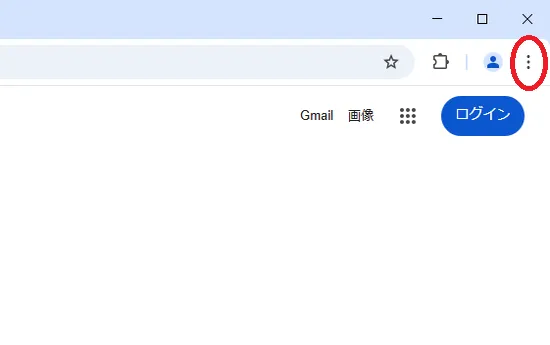
Click on the three vertical dots in the top right corner of your browser.
If you select "Download" from the menu that appears, a list of files you have downloaded in the past will be displayed.
For Microsoft Edge
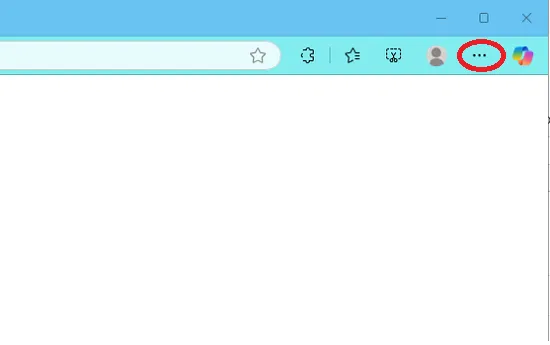
Click on the three dots in the top right corner of your browser.
If you select "Download" from the menu that appears, a list of files you have downloaded in the past will be displayed.
For Safari
To check, tap the "Files" app and then "Downloads."
A list of files you have downloaded in the past will be displayed.
For iPhone users
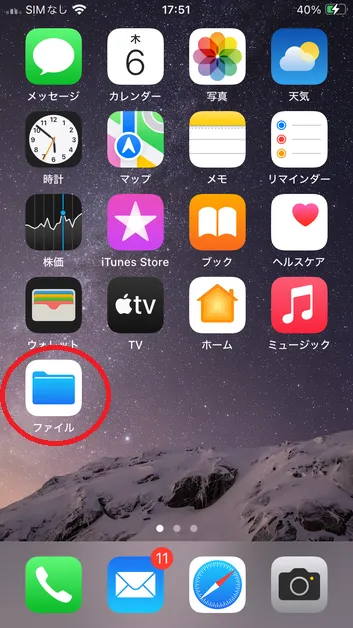
*The steps use iOS 18 and the Files application as an example.1. Open the Files application
Open the "Files" application from the Home screen.
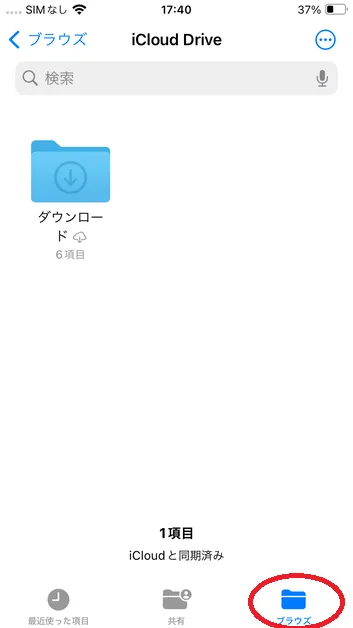
2. Tap the "Browse" tab
After opening the Files application, tap the Browse tab.
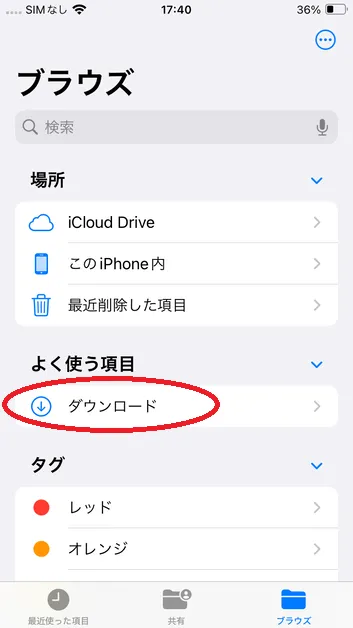
3. Tap "Download"
Tap "Download" to view the downloaded files.
If you are unable to open the file, please check the link below.
When you can't open a downloaded PDF
For Android users
1. Open the Files application
*The steps use Google Pixel 8 (Android 15) and the "Files" application as an example.
Tapping on the "Files" application will open the "Downloads" screen.
Check whether you can open the file.If you are unable to open the file, please check the link below.
*You can also check this using the "Files by Google" application.
When you can't open a downloaded PDF
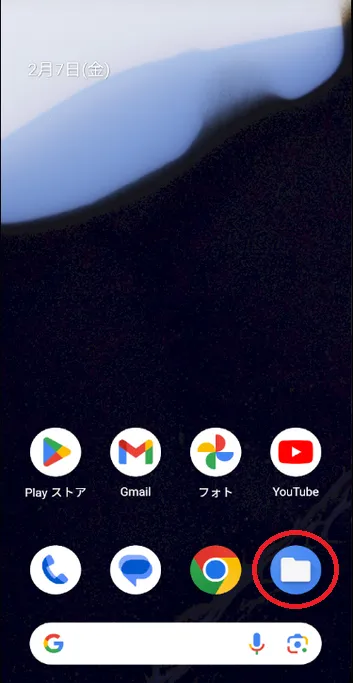
Supplement. For Xiaomi 11T Pro
*The steps use the Xiaomi 11T Pro (Android 13) "File Manager" as an example.
Open the "File Manager" application from the Home screen.
When you tap "Download" on the menu, the downloaded files will be displayed in a list, so check if you can open the file you want.If you are unable to open the file, please check the link below.
When you can't open a downloaded PDF* Operation methods vary depending on the device's OS and application version.
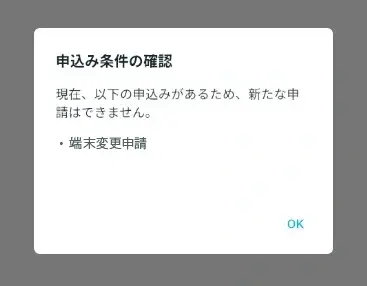
- What should I do if I am unable to submit an application and a dialog box appears stating "You cannot submit a new application because you have already applied for the following."?
-
Applications displayed in the dialog are pending approval, so new applications cannot be made.
The handling method varies depending on the type of application displayed.
(1) If the following application is displayed:
・Event application
⇒ Wait until approval is granted, or cancel your pending application and submit a new one.
Cancel your event application
(2) If the following application is displayed
・Device change application
・User information change request
・Domestic exam in Japan pass certificate Application
・Japan Domestic Exam pass certificate Reissuance Application
・Overseas Exam pass certificate Application
⇒ Please wait until your application is approved, as cancellation is not possible.
- How can Japanese residents apply for pass certificate of The Specified Skills Evaluation Exam taken outside Japan?
-
You apply through the smartphone app "JAC Members".
*This applies to exams taken in a country other than Japan by residents of Japan.First, you need to install the app and register an account.
I want to install the "JAC Members" app. Where can I get it?
Register an account
After completing account registration, tap the menu icon at the top left of the app screen.
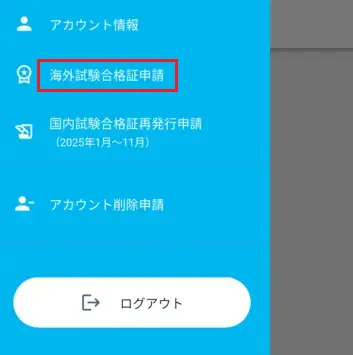
Please apply from the menu under [Overseas Exam pass certificate Application].If you took the exam in Japan, please apply from the [Domestic pass certificate] at the bottom of the app screen.
1. Display the menu
Log in to the app and tap the menu icon on the home screen.
The menu will open.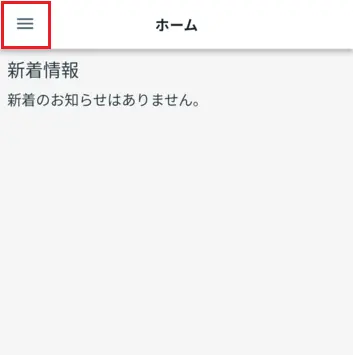
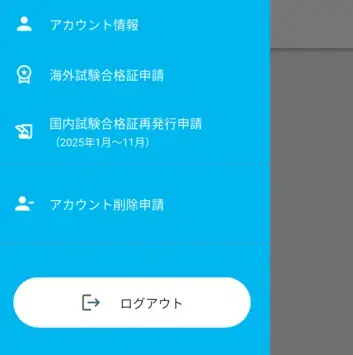
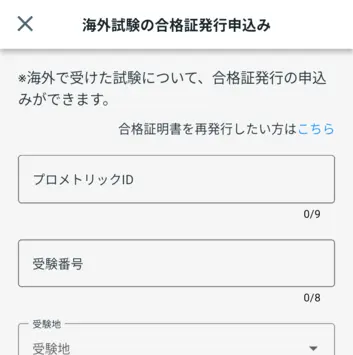
2. Display the "Application for pass certificate Issuance of Overseas Exam" screen
Tap [Overseas Exam pass certificate Application] in the menu.
The "Application for pass certificate Issuance of Overseas Exam" screen will open.
After that, please follow the link below to fill out your form and submit your application.
Apply for pass certificate of The Specified Skills Evaluation Exam taken outside Japan 2-2. Enter information in the "Application for pass certificate "
- How can Japanese residents reissue pass certificate The Specified Skills Evaluation Exam taken outside Japan?
-
Apply from the 'Application for Issuance of Overseas Exam pass certificate' screen.
* Exams taken by residents of Japan in countries outside Japan are eligible.[Notes]
pass certificate issued through the "JAC Members" app can only be reissued once per category.
For example, if you pass the exams for the "Civil Engineering" and "Architecture" categories, you can reissue pass certificate once for each category.
※ If there are pass certificate pending issuance at this time, you cannot proceed to the next pass certificate issuance operation until the pass certificate is issued or rejected.
* If you have passed a different exam category after issuing a pass certificate, please apply for a new pass certificate issuance.
1. Display the menu
Log in to the app and tap the menu icon in the upper left corner of the app screen.
The menu will open.
2. Display the "Application for pass certificate Issuance of Overseas Exam" screen
Tap [Overseas Exam pass certificate Application] in the menu.
The "Application for pass certificate Issuance of Overseas Exam" screen will open.
After that, please follow the link below to fill out your form and submit your application.
Reissue pass certificate of The Specified Skills Evaluation Exam taken outside Japan 1-2. pass certificate Display the reissue screen
Index
Account registration and basic operations
The Specified Skills Evaluation Exam Related