
About JAC website multilingualization
The JAC website uses AI automatic translation (machine translation). Because it is machine translation, the translation may not always be accurate.
About the automatic translation (machine translation) function
- The website is automatically translated (machine translated) according to the language settings of the device you are using to view the website.
- To change the language, open the language selection panel from the Language button in the header and select the language.
- Some proper nouns may not be translated correctly.
- Some pages are not automatically translated. PDFs are not translated.
- Links to external sites will not be translated.
Note
- Please enable JavaScript when using this function.
- This function may not be available in some browsers or viewing environments.



We provide multilingual content through machine translation. Translation accuracy is not 100%. About the multilingualization of the JAC website
If you choose "Plain Japanese", it will be a simple sentence and a phonetic.
If you select "Attach hiragana", you will add furigana to your sentence.
You can select your native language in "Language" to translate it.
I don't understand... I'm in trouble... If that happens, please contact us.
- First, check out the Q&A!Concerns about living in Japan
Work worries Q&A - Free consultation with JAC *Only within Japan
 Weekdays 9:00-17:30 Closed on weekends and holidays
 - FITS (Foundation for International Transfer of Skills and Knowledge in Construction) is available to answer your enquiries in your native language via telephone, fax or email.

-
We provide multilingual content through machine translation. Translation accuracy is not 100%. About the multilingualization of the JAC website
If you choose "Plain Japanese", it will be a simple sentence and a phonetic.
If you select "Attach hiragana", you will add furigana to your sentence.
You can select your native language in "Language" to translate it.
Those taking the exam outside of Japan
★A blog for foreigners working in Japan★



Those taking the exam outside of Japan
Release date: November 29, 2024
Frequently asked questions about using the "JAC Members" app
We have compiled a list of frequently asked questions about how to use the "JAC Members" app.
- I want to install the "JAC Members" app. Where can I get it?
- I forgot the password I registered for "JAC Members".
- I got a new smartphone. Can I use it as is?
- How do I send a message to JAC using the "JAC Members" app?
- I don't have a passport. I changed my smartphone, so can I apply for a change of device?
- How do I delete my account?
- How can I get a pass certificate for exams taken outside Japan?
- How can I get a pass certificate for an exam I took in Japan?
- A "Supported version change notification" dialog box appears on the app screen. What should I do?
- What should I do if I don't know where the files I downloaded using the "JAC Members" app are saved?
- What should I do if I don't know where the files I downloaded from "My Page" are saved?
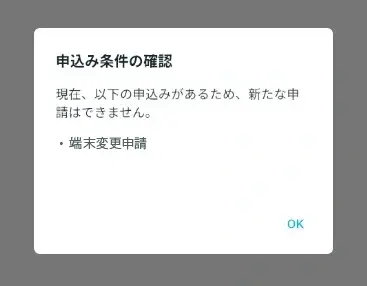
- What should I do if I am unable to submit an application and a dialog box appears stating "You cannot submit a new application because you have already applied for the following."?
*App Store and iPhone are trademarks of Apple Inc., registered in the U.S. and other countries.
*Google Play and the Google Play logo are trademarks of Google LLC.
- I want to install the "JAC Members" app. Where can I get it?
-
Scan the QR code on the right with your smartphone or tap the button.
The link destination will differ depending on the smartphone's OS.iOS
Install on
 Android
Install on

- I forgot the password I registered for "JAC Members".
- Please follow the link below and register a new password.
Reset Password
- I got a new smartphone. Can I use it as is?
- If you change your smartphone, it will no longer work as is. If you change your smartphone, please check the link below and apply for a device change. To apply for a device change, you will need your Japanese residence card, passport, or government-issued photo ID card from your country.
When you change your smartphone (device)
- How do I send a message to JAC using the "JAC Members" app?
-
You cannot send messages to JAC from the "JAC Members" app.
Please contact JAC via the details below.
Japanese/English: Inquiry form
Indonesian: What'sApp
- I don't have a passport. I changed my smartphone, so can I apply for a change of device?
-
In addition to passports, photo ID cards issued by various governments can also be used to apply for device changes.
(People in Japan can also apply for the change using their Japanese residence card.)
To apply for a device change using a government-issued photo ID card or residence card, please open the link below, "When you change your smartphone (changing your device)," and follow the steps up to "2-1. Display the 'Device Change Application' screen," before performing this operation.
When you change your smartphone (device)1. Enter your information and take a photo of your ID and face
Example 1) Government-issued ID (photo + ID)
A) Display the screen for "Device Change Request" using government-issued ID
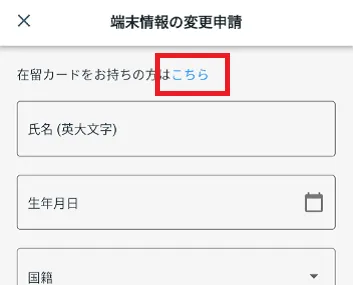
Tap "If you don't have a residence card, click here."
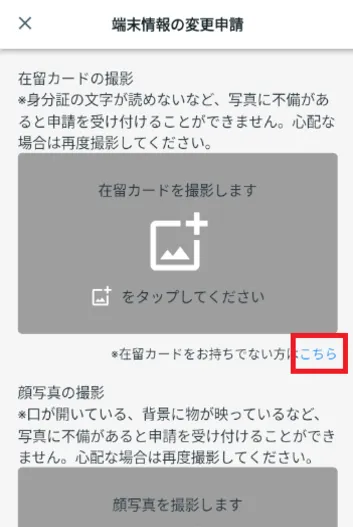
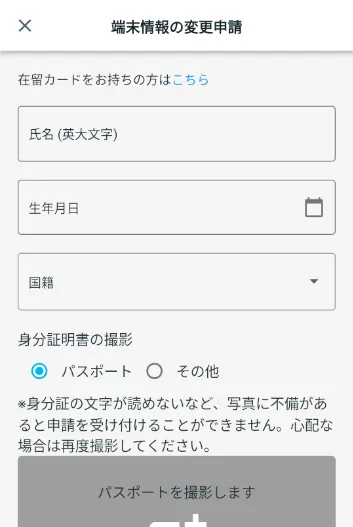
B) Enter your name, date of birth, and nationality
Enter your name, date of birth and nationality.
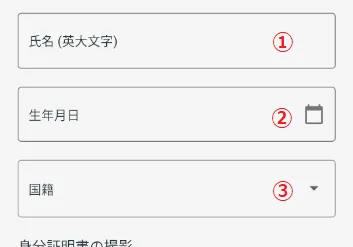 ① Name
Enter your name.
② Date of birth
Example: JOHN SMITH
Select the date of birth from the calendar that appears.
③Nationality
Choose your nationality.
C) Photograph your government-issued ID
Under "Photograph ID," select "Other." "Photograph your government-issued photo ID" will be displayed.
- Below is my government issued ID.
- A Japan Individual Number Cards ("My Number Card") ID card with a photo (Resident Identification Card)
- Student Card
- Driver's License
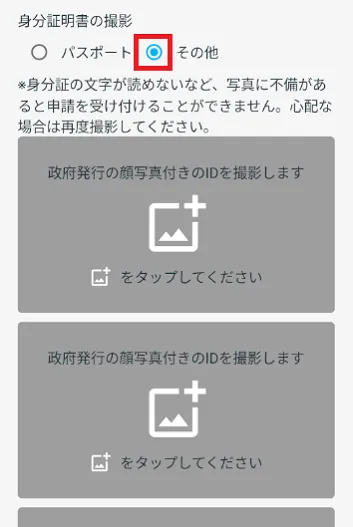
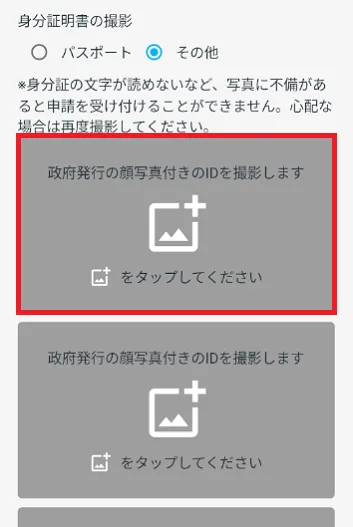
Tap "Take a photo of your government-issued photo ID."
Take a photo of your face and the front and back of a card or other official ID.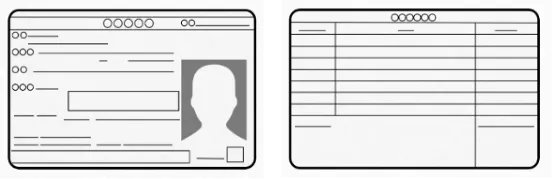
★Good photos
・The characters are clearly readableBad Photos
・It's shining and I can't make out faces or lettersPlease check "2. Take a photo of your face" from the link below.
2. Take a photo of your faceExample 2) Residence card
A) Display the screen when applying for a device change using a residence card
Check that "Take a photo of your residence card" is displayed. If it is not displayed, tap "If you have a residence card, click here."
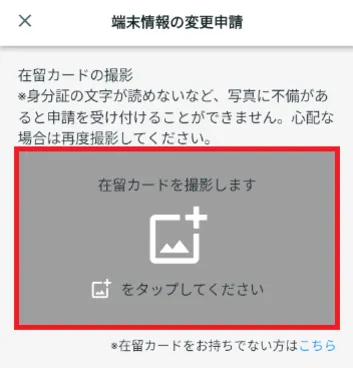
B) Take a photo of your residence card
Click "Photo your residence card"
 Please read the instructions on the screen carefully and take a photo of your residence card in the same way as the "Residence Card Photo Steps" below.
Residence card photo shoot process*If there are any defects in the photo, such as the characters on the ID being illegible, your application will not be accepted. If you are unsure, please take another photo.
Flow of taking a photo of your residence card
*If there are any defects in the photo, such as the characters on the ID being illegible, your application will not be accepted. If you are unsure, please take another photo.
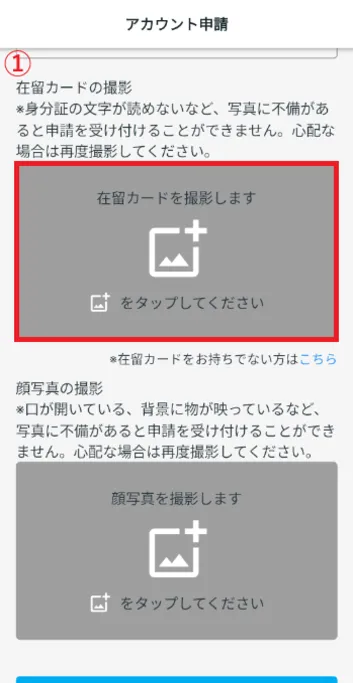
- ① Tap
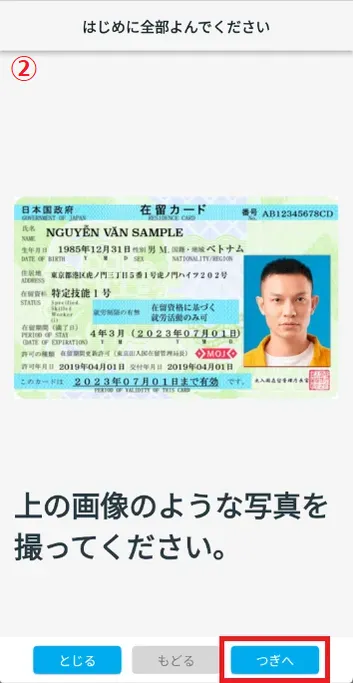
- ② Check the image and tap "Next".
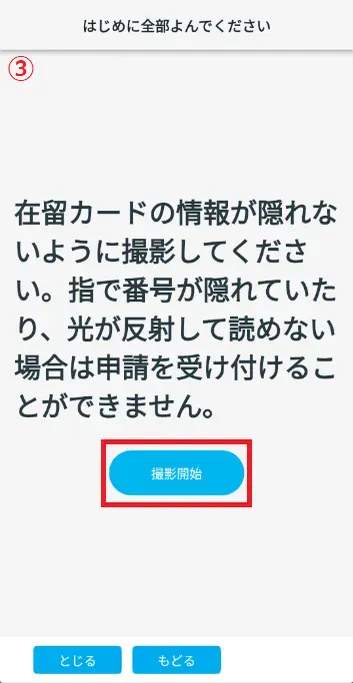
- ③ Check the warning text and tap "Start shooting."
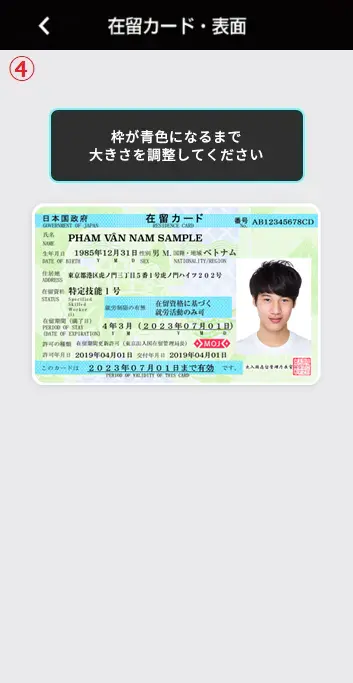
- ④ Adjust the size of your residence card and take the photo when the frame turns blue.
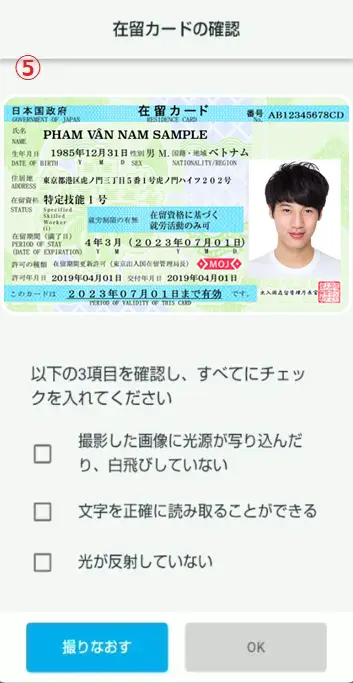
- ⑤ There are three check items to ensure that the photo of your residence card is taken correctly.
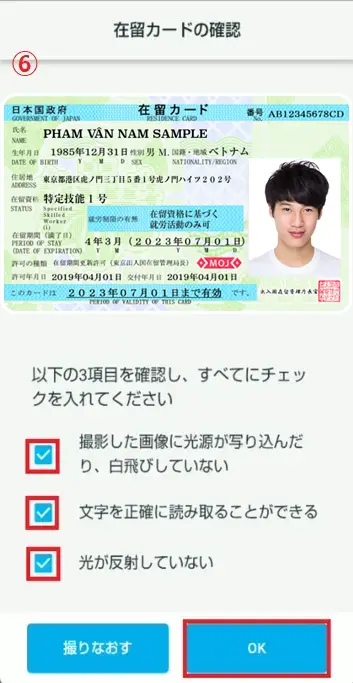
- ⑥ If you are happy with the settings, check all three boxes and tap "OK".
①
Tap② Check the image and tap "Next".
③ Check the warning text and tap "Start shooting."
④ Adjust the size of your residence card and take the photo when the frame turns blue.
⑤ There are three check items to ensure that the photo of your residence card is taken correctly.
⑥ If you are happy with the settings, check all three boxes and tap "OK".
2. Take a photo of your face
Once you have filled everything in, follow the steps in the link below.
When you change your smartphone (changing your device) 2-4. Take a photo of your face
- How do I delete my account?
- If you would like to delete your "JAC Members" account, please check the link below.
Delete your account
- How can I get a pass certificate for exams taken outside Japan?
- If you want to receive pass certificate from exams taken outside Japan, please check the link below.
How to receive pass certificate (when taking the exam outside Japan)
- How can I get a pass certificate for an exam I took in Japan?
-
The way to receive pass certificate varies depending on when and where you took the exam.
Check the table below for when and where you took the test, and receive it by any of A, B, C, or D methods.
Time of taking the exam Until December 2024 January to November 2025 From December 2025 Taking the exam in Japan ABCTaking the exam outside Japan DDDAPlease check the result notification on the Prometric website for test results.
Prometric The Specified Skills (i) Evaluation Exam Details & Application
Prometric The Specified Skills (ii) Evaluation Exam Details & Applicationpass certificate Please receive them through the "JAC Members" app.
Apply for pass certificate of The Specified Skills Evaluation Exam taken in JapanBPlease check using the "JAC Members" app.
Receive exam results and pass certificate using the "JAC Members" appCPlease check the message on JAC's My Page.
Check exam results and pass certificate in 'My Page'DPlease receive pass certificate through the "JAC Members" app.
How to receive pass certificate (when taking the exam outside Japan)ReFor information on how to reissue pass certificate, please refer to the link below.
How can I reissue the pass certificate of the exam?
- A "Supported version change notification" dialog box appears on the app screen. What should I do?
-
Please check the OS version of your smartphone and take the following steps.
① You can update the OS to a supported version.
⇒ Please update the OS on your smartphone.
②Unable to update the OS to a supported version
⇒ Change your device to a smartphone with the applicable OS version and apply for a device change.
Please see the link below for application instructions.
When you change your smartphone (device)
- What should I do if I don't know where the files I downloaded using the "JAC Members" app are saved?
-
The destination where files downloaded with the "JAC Members" app are saved differs between iPhone and Android.
For iPhone: It will be saved in the "JAC Members" folder in the internal storage (※). Please note that it is not iCloud Drive.
For Android: It will be saved in the "Download" folder in the internal storage(*).
*This refers to the storage location of data on the smartphone itself.Files stored in the internal storage can be viewed using applications such as "Files" and "File Manager."
* Operation methods vary depending on the device's OS and application version.
Please see below for instructions on how to check files downloaded using the "JAC Members" app.
For iPhone users
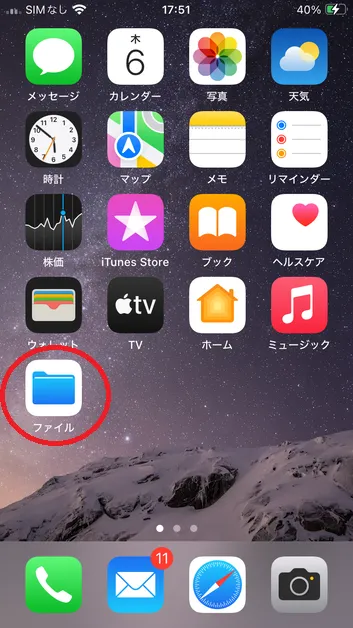
*The steps use iOS 18 and the Files application as an example.1. Open the Files application
Open the "Files" application from the Home screen.
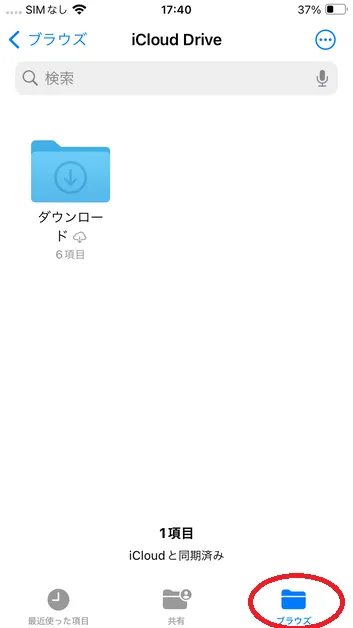
2. Tap the "Browse" tab
After opening the Files application, tap the Browse tab.
3. Tap "On This iPhone"
Tap "On This iPhone" from the menu that appears.
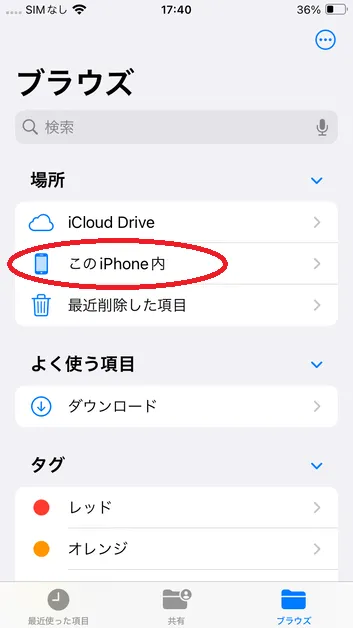
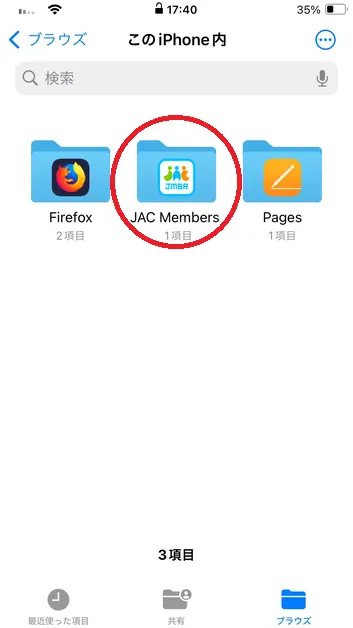
4. Tap "JAC Members"
Tap the "JAC Members" folder to display the downloaded files.
If you are unable to open the file, please check the link below.
When you can't open a downloaded PDF
For Android users
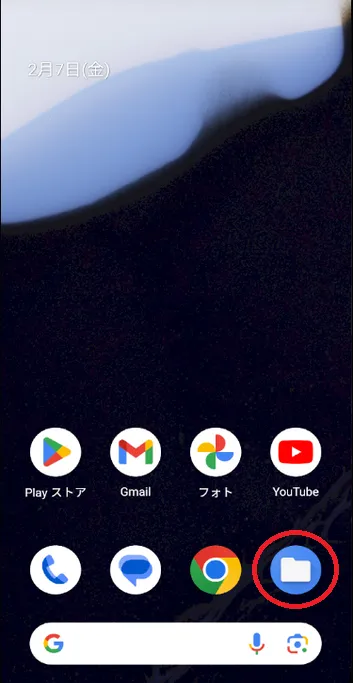
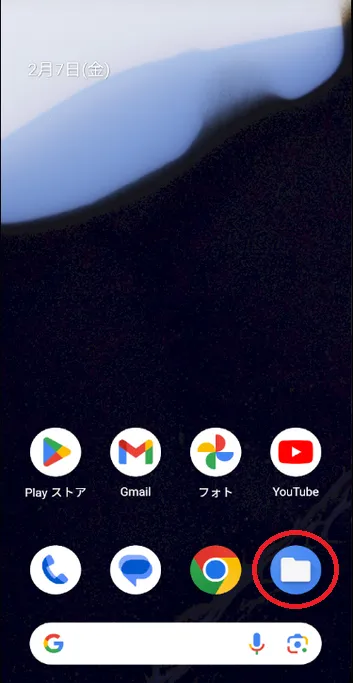
1. Open the Files application
*The steps use Google Pixel 8 (Android 15) and the "Files" application as an example.
Tapping on the "Files" application will open the "Downloads" screen.
Check whether you can open the file.If you are unable to open the file, please check the link below.
*You can also check this using the "Files by Google" application.
When you can't open a downloaded PDF
Supplement. For Xiaomi 11T Pro
*The steps use the Xiaomi 11T Pro (Android 13) "File Manager" as an example.
Open the "File Manager" application from the Home screen.
When you tap "Download" on the menu, the downloaded files will be displayed in a list, so check if you can open the file you want.If you are unable to open the file, please check the link below.
When you can't open a downloaded PDF
*Operation methods vary depending on the device's OS and application version.
- What should I do if I don't know where the files I downloaded from "My Page" are saved?
-
The method for checking files downloaded on "My Page" varies depending on the device and web browser you are using.
Please see the link below to log in to "My Page".
My Page The file will be stored in the download location of your web browser, but the method for checking it will differ depending on whether you are accessing it from a PC or a smartphone.
* Operation methods vary depending on the device's OS and application version.
Please see below for instructions on how to check the files you have downloaded on "My Page".
For PC users
The following describes how to check for each web browser.
For Google Chrome
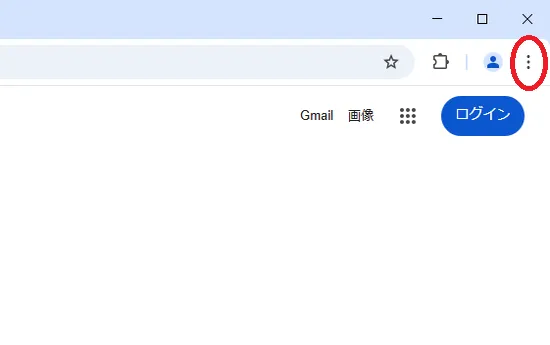
Click on the three vertical dots in the top right corner of your browser.
If you select "Download" from the menu that appears, a list of files you have downloaded in the past will be displayed.
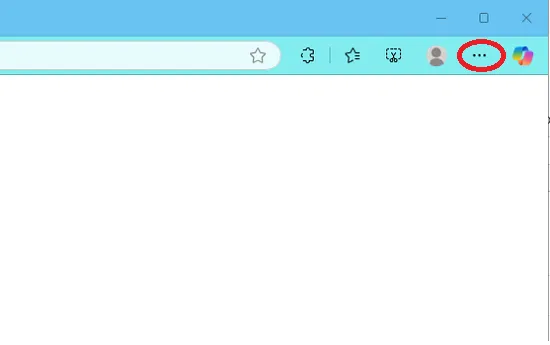
For Microsoft Edge
Click on the three dots in the top right corner of your browser.
If you select "Download" from the menu that appears, a list of files you have downloaded in the past will be displayed.
For Safari
To check, tap the "Files" app and then "Downloads."
A list of files you have downloaded in the past will be displayed.
For iPhone users
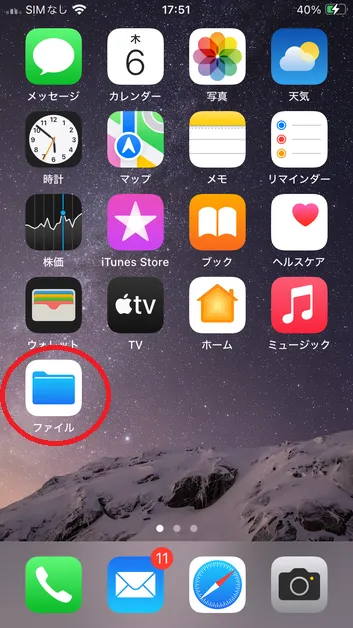
*The steps use iOS 18 and the Files application as an example.1. Open the Files application
Open the "Files" application from the Home screen.
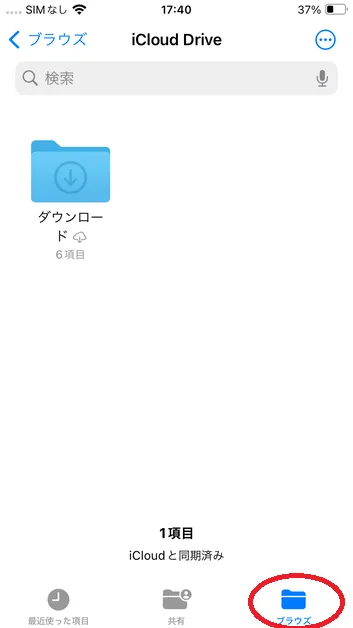
2. Tap the "Browse" tab
After opening the Files application, tap the Browse tab.
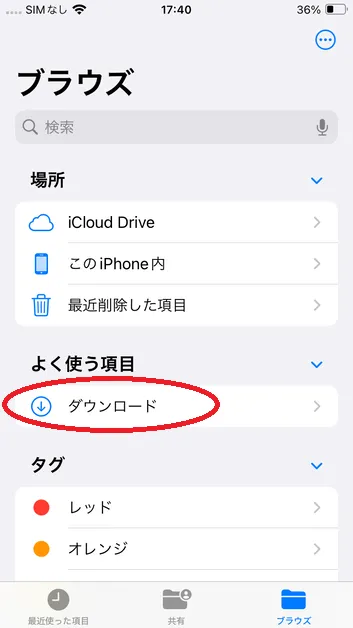
3. Tap "Download"
Tap "Download" to view the downloaded files.
If you are unable to open the file, please check the link below.
When you can't open a downloaded PDF
For Android users
1. Open the Files application
*The steps use Google Pixel 8 (Android 15) and the "Files" application as an example.
Tapping on the "Files" application will open the "Downloads" screen.
Check whether you can open the file.If you are unable to open the file, please check the link below.
*You can also check this using the "Files by Google" application.
When you can't open a downloaded PDF
Supplement. For Xiaomi 11T Pro
*The steps use the Xiaomi 11T Pro (Android 13) "File Manager" as an example.
Open the "File Manager" application from the Home screen.
When you tap "Download" on the menu, the downloaded files will be displayed in a list, so check if you can open the file you want.If you are unable to open the file, please check the link below.
When you can't open a downloaded PDF* Operation methods vary depending on the device's OS and application version.
- What should I do if I am unable to submit an application and a dialog box appears stating "You cannot submit a new application because you have already applied for the following."?
-
Applications displayed in the dialog are pending approval, so new applications cannot be made.
The handling method varies depending on the type of application displayed.
(1) If the following application is displayed:
・Event application
⇒ Wait until approval is granted, or cancel your pending application and submit a new one.
Cancel your event application
(2) If the following application is displayed
・Device change application
・User information change request
・ pass certificate Issuance Application
⇒ Please wait until your application is approved, as cancellation is not possible.
Index
Account registration and basic operations
The Specified Skills Evaluation Exam Related